Learn how to set up the INNOCHAT white label dashboard, configure your app, connect your domain, set up email senders, add API keys, and activate Stripe for subscription plans. This guide walks partners through the entire initial setup process step by step.
The whitelabel dashboard is the interface through which partners of INNOCHAT can customize their own deployments of the app. Using the dashboard, partners are able to change the name, branding, and colors of the app. Partners are also able to manage their users, set their LLM API keys, and much more.Before you can get started with the dashboard, you will need to reach out to INNOCHAT staff with your email. We will provide you with a temporary password, which will enable you to log in to the dashboard. Once you have logged in, please change your password via the menu on the top right:
In the dashboard, you will need to complete the following tasks to get started:
Add your app’s information.
Set up your domain.
Set up your email sender information.
Add your LLM API key(s).
Set up your Stripe account
Create a free tier plan for your users.
We will cover these steps in the remaining sections of this page.
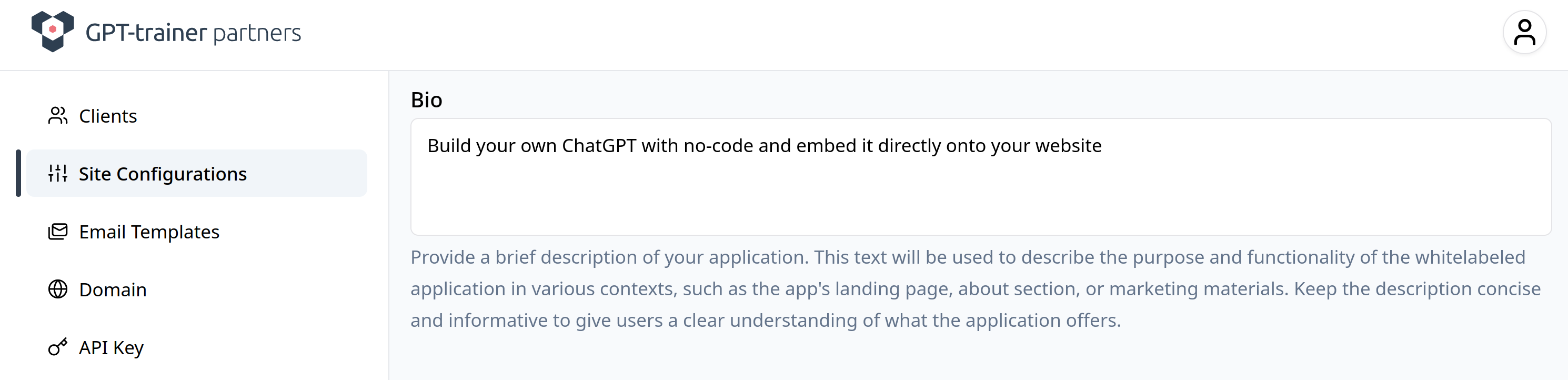
The “Site Configurations” tab on the left-side menu is where you can go to change the user-facing information for your app, such as:
The name of your app
A description of your app
Your customer communications email
Your website URL (preferably separate from the address of your app. For example, the INNOCHAT website is https://innochat.ch/, while the INNOCHAT app is hosted at https://app.innochat.ch). Please include the https:// part of your URL.
Your logo (preferably .png or .jpg. Do not upload .svg files for your logo) and favicon
The colours of your app
You can update this information at any time. The changes will eventually be reflected to your users. They may not be updated immediately. Since we use a browser cache to store this information, your users will have to open the app in a new tab or window for any changes to be reflected.
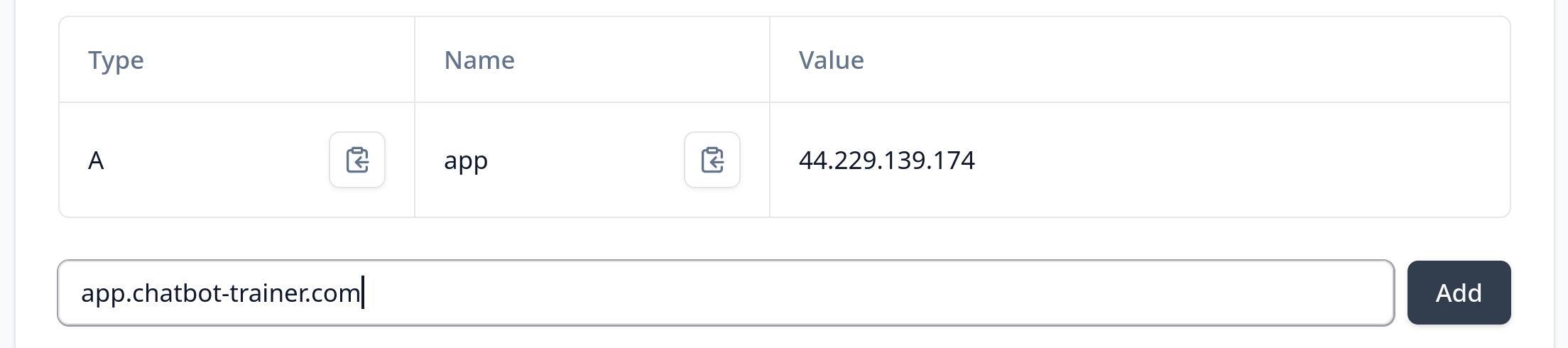
For this step, you will have to add a DNS A record with your domain service provider that points to the IP address provided to you on the “Domain” tab. You can use the root domain, or a sub-domain. For example, if you want your app to be registered at app.chatbot-trainer.com, the record to add is pictured below:
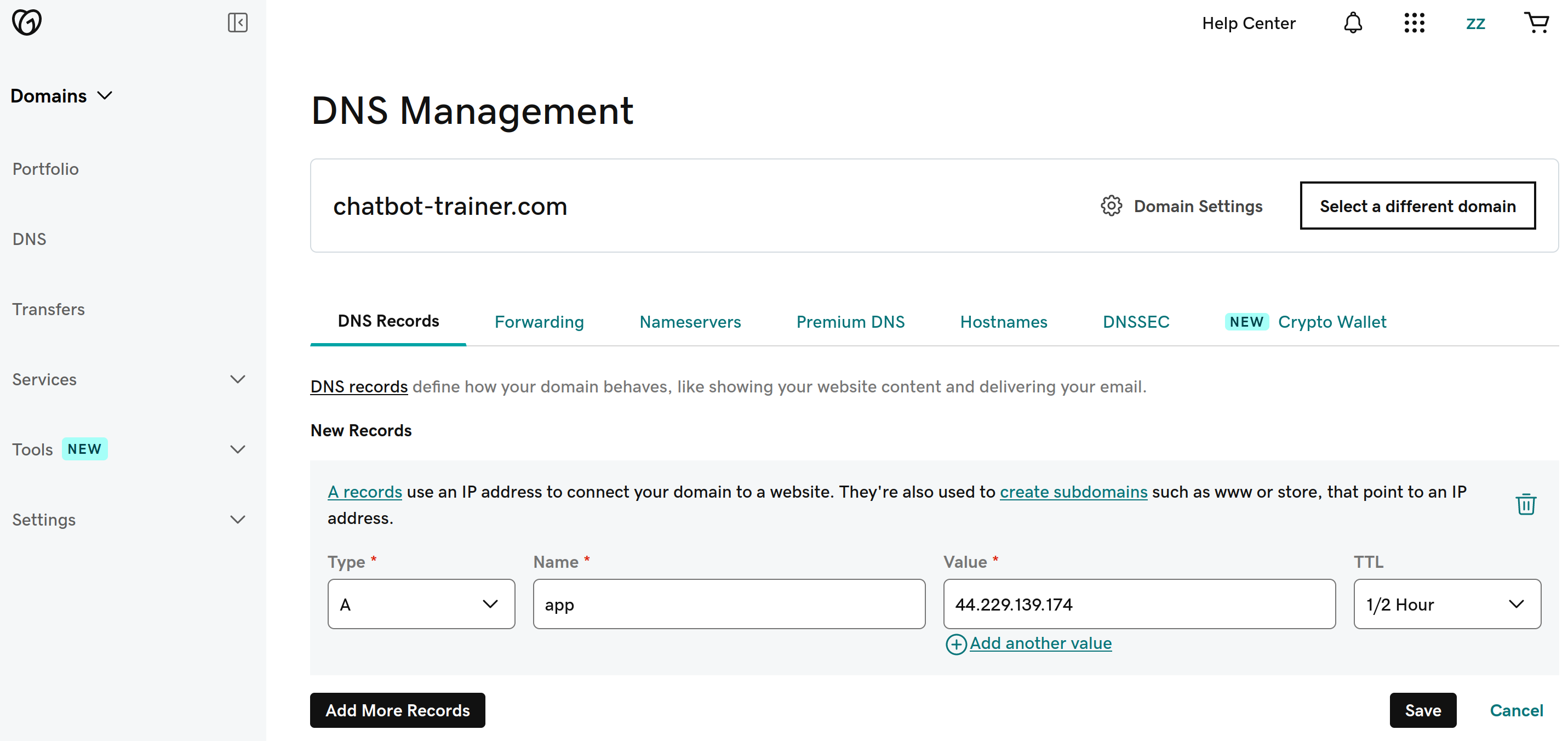
If you are adding the root domain, the “name” section should be the character @; if you are adding a subdomain, it should be the name of the subdomain, e.g. app. If your domain provider is GoDaddy, the page you want to add your record at might look like this:
Fill in the fields as directed, and click “Save”. If you are using another domain provider, please follow their instructions for adding DNS records.It may take a few minutes for the record to propagate, so give it some time before adding the domain to your INNOCHAT Partner dashboard. You must create the record first before using it in your dashboard.Please note: you must ensure that there is only a single A-record for your domain. If you have multiple records that point to different IP addresses, setup will not work. You can use a tool like Nslookup.io to check if there are multiple addresses associated with your domain. If there are, you must delete the other records before proceeding.Finally, the IP address used in the example is for testing purposes only. For the production version of your app, you will see a different IP address in your dashboard.
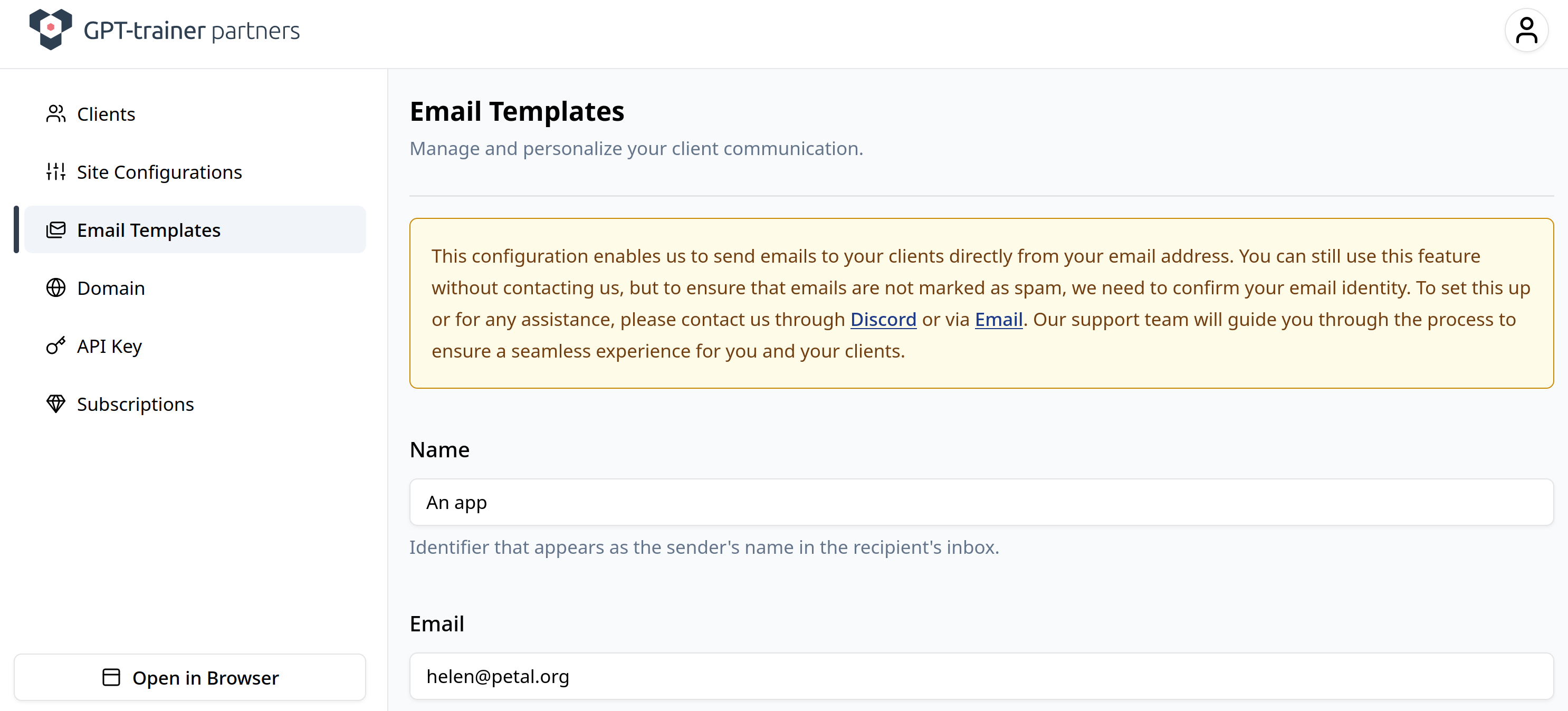
The email you enter on the “Email Templates” tab can be different from the one you provided on the “Site Configurations” tab. The email and name on this page will be used for automated communications with your users, such as sending verification codes, confirming purchases, etc.Please use your own domain for your email (for example, hello@chatbot-trainer.com). Do not use Google, Yahoo, or other email providers. This is because the automated email service needs to verify your ownership of the domain to send from it.Once you know the email you want to use for this part, please contact us, INNOCHAT, directly. We will work with you to verify your domain.
Your app will not work without setting up the automated emails with us. Please
reach out to us once you are ready for this step.
This domain/address does not have to have an inbox attached to it. It is for outbound emails only.
In order to deploy your whitelabelled app, you will need to obtain your own OpenAI API key. Simply paste it into the box on the “API Key” tab in the dashboard, click “Add”, and you are good to go. You can change this API Key at any time. You cannot delete the key after adding it, only replace it with another key. This is because removing the key at any point will break AI functions for your users. Please verify that your API key is functional before entering it. You must add an OpenAI API key, as it is used for basic functions of the app.Optionally, you can add Anthropic Claude and/or Google Gemini API keys. Your app will work without these, but adding them will allow your users to use Claude and Gemini models in addition to OpenAI models.
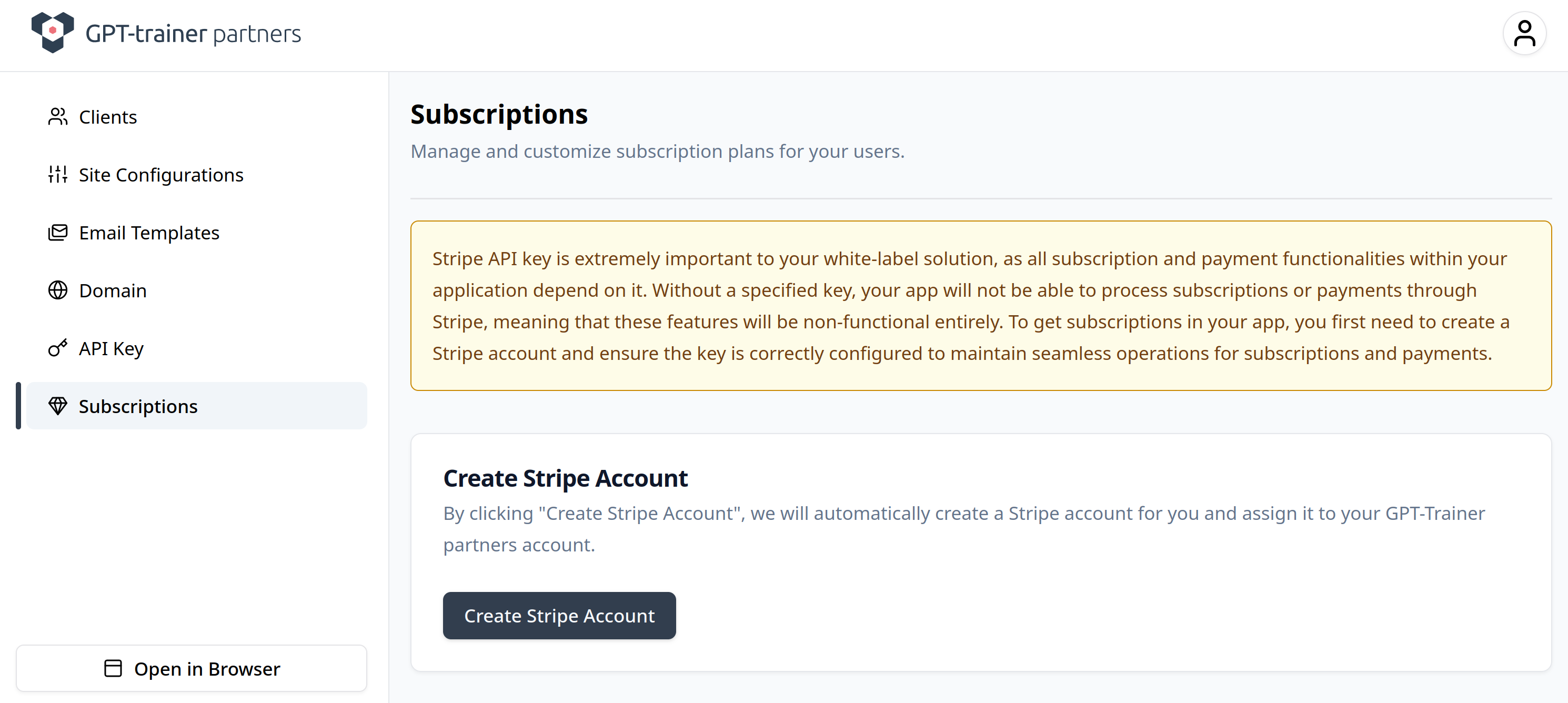
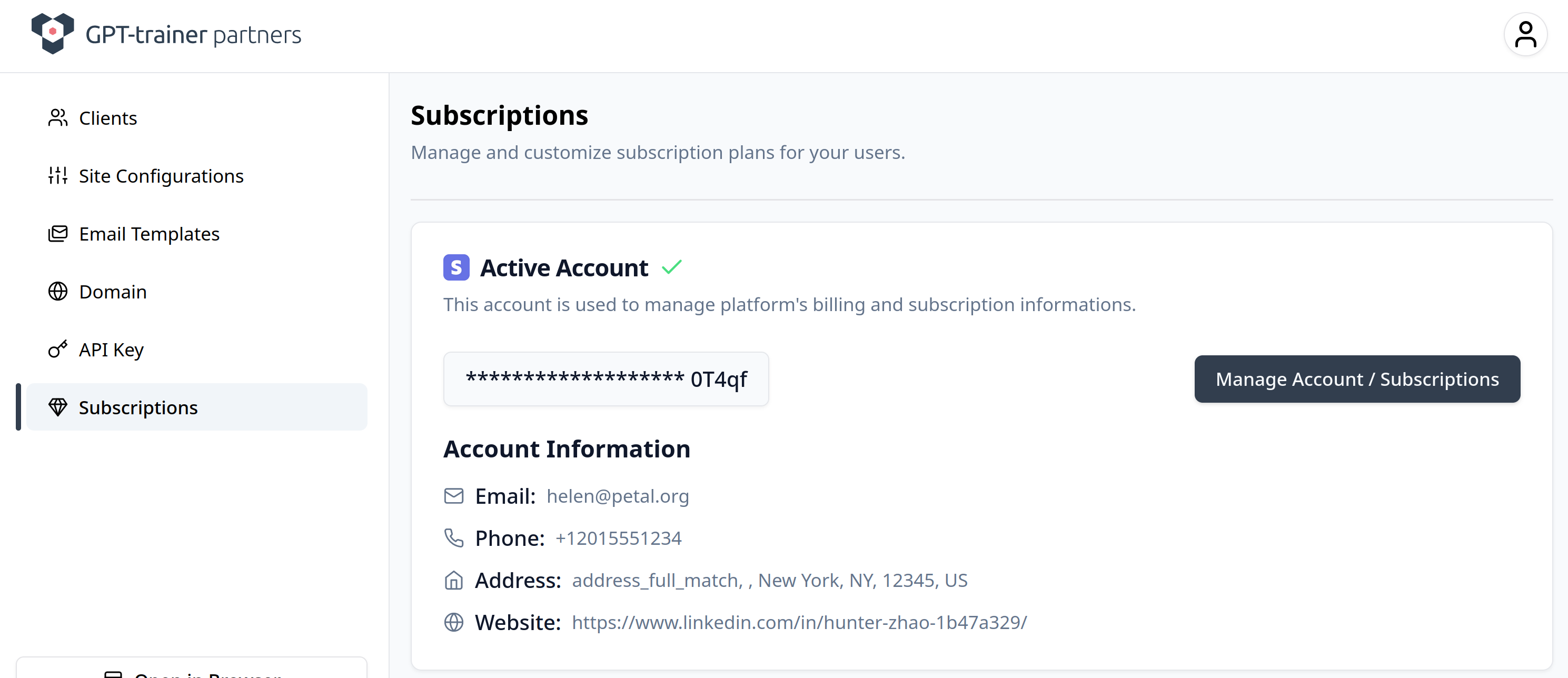
You must create or link a Stripe account to be able to use subscriptions/plans within your app. To get started, simply click the “Create Account” button in the “Subscriptions” tab. Then, click the button that appears in the same location to be redirected to Stripe, where you can complete the Stripe onboarding process. Be prepared to fill out personal, business, and bank details.
Once you have completed the Stripe setup, your dashboard should look like the above, and you will be able to
Decide if you want to provide your users with a Free Tier Plan and/or a trial, and edit its perks.
Create paid plans.
Create paid add-ons.
If you change the limits on your Free Plan on this page, the changes will be automatically propagated to your Free Plan users.For more details on creating paid plans, please see Creating plans.
{"docsConfig":{"theme":"mint","$schema":"https://mintlify.com/docs.json","name":"innoChat API","colors":{"primary":"#2E3F51","light":"#516F90","dark":"#0D001D"},"logo":{"light":"https://mintcdn.com/innoq/m-MXq-_ojngkTbq6/logo/light.svg?fit=max\u0026auto=format\u0026n=m-MXq-_ojngkTbq6\u0026q=85\u0026s=40744d3184133a986aba56b47474b33c","dark":"https://mintcdn.com/innoq/m-MXq-_ojngkTbq6/logo/dark.svg?fit=max\u0026auto=format\u0026n=m-MXq-_ojngkTbq6\u0026q=85\u0026s=b9b2ff5ca3f2aba26ea014cc52e30f81"},"favicon":"/logo/favicon.png","api":{},"background":{},"navbar":{"links":[{"href":"mailto:hello@innochat.ch","label":"Support"}],"primary":{"type":"button","label":"Dashboard","href":"https://app.innochat.ch"}},"navigation":{"languages":[{"language":"en","default":true,"href":"introduction"},{"language":"de","href":"de/introduction"},{"language":"fr","href":"fr/introduction"},{"language":"it","href":"it/introduction"}]}},"deployment":{"deploymentMetadataValue":{"subdomain":"innoq","hasAudioNarration":false,"actualSubdomain":"innoq","customDomains":["docs.innochat.ch"],"gitSource":{"type":"github","owner":"innoq-doc","repo":"innoq-doc","deployBranch":"main","contentDirectory":"","isPrivate":true,"mountPath":"","label":""},"chroma":{"liveDeploymentHistoryId":"6a21e708a8fc07c2afd382a3","collectionId":"53bb3d08-7d40-431e-9052-b46127ae217e","schemaVersion":"v2"},"entitlements":{},"buildId":"6a21e708a8fc07c2afd382a3:success","clientVersion":"0.0.3990","searchFilterCounts":[{"language":"en","tag":"API Reference","count":39},{"language":"de","tag":"API-Referenz","count":39},{"language":"fr","tag":"Référence API","count":39},{"language":"it","tag":"Riferimento API","count":36},{"language":"en","tag":"Data Sources","count":22},{"language":"de","tag":"Datenquellen","count":22},{"language":"fr","tag":"Sources de données","count":22},{"language":"it","tag":"Origini dati","count":22},{"language":"en","tag":"Documentation","count":15},{"language":"de","tag":"Dokumentation","count":15},{"language":"fr","tag":"Documentation","count":15},{"language":"it","tag":"Documentazione","count":15},{"language":"en","tag":"Chatbots","count":12},{"language":"en","tag":"Guides","count":12},{"language":"de","tag":"Chatbots","count":12},{"language":"de","tag":"Anleitungen","count":12},{"language":"fr","tag":"Chatbots","count":12},{"language":"fr","tag":"Guides","count":12},{"language":"it","tag":"Chatbot","count":12},{"language":"it","tag":"Guide","count":12},{"language":"en","tag":"Sessions \u0026 Messages","count":11},{"language":"de","tag":"Sitzungen \u0026 Nachrichten","count":11},{"language":"fr","tag":"Sessions \u0026 Messages","count":11},{"language":"en","tag":"Agents","count":10},{"language":"de","tag":"Agenten","count":10},{"language":"fr","tag":"Agents","count":10},{"language":"it","tag":"Agenti","count":10},{"language":"it","tag":"Sessioni e Messaggi","count":8},{"language":"en","tag":"Session Messages","count":6},{"language":"en","tag":"Whitelabel","count":6},{"language":"de","tag":"Sitzungsnachrichten","count":6},{"language":"de","tag":"Whitelabel","count":6},{"language":"fr","tag":"Messages de session","count":6},{"language":"fr","tag":"Marque blanche","count":6},{"language":"it","tag":"Messaggi di sessione","count":6},{"language":"it","tag":"White label","count":6},{"language":"en","tag":"Chatbot Sessions","count":5},{"language":"de","tag":"Chatbot-Sitzungen","count":5},{"language":"fr","tag":"Sessions chatbot","count":5},{"language":"it","tag":"Cookbook","count":5}]},"assistantConfig":{},"basePath":"","hasChatPermissions":false,"hasWebMcpPermissions":false,"toggles":[],"isAtlas":false,"googleFontsInlined":false},"customCss":[],"page":{"pagePath":"whitelabel/whitelabel-intro","slug":"/whitelabel/whitelabel-intro","pageMetadata":{"title":"Introduction and first-time setup","description":"Learn how to set up the INNOCHAT white label dashboard, configure your app, connect your domain, set up email senders, add API keys, and activate Stripe for subscription plans. This guide walks partners through the entire initial setup process step by step.","href":"/whitelabel/whitelabel-intro","hidden":false},"description":{"compiledSource":"\"use strict\";\nconst {jsx: _jsx} = arguments[0];\nconst {useMDXComponents: _provideComponents} = arguments[0];\nfunction _createMdxContent(props) {\n const _components = {\n p: \"p\",\n ..._provideComponents(),\n ...props.components\n };\n return _jsx(_components.p, {\n children: \"Learn how to set up the INNOCHAT white label dashboard, configure your app, connect your domain, set up email senders, add API keys, and activate Stripe for subscription plans. This guide walks partners through the entire initial setup process step by step.\"\n });\n}\nfunction MDXContent(props = {}) {\n const {wrapper: MDXLayout} = {\n ..._provideComponents(),\n ...props.components\n };\n return MDXLayout ? _jsx(MDXLayout, {\n ...props,\n children: _jsx(_createMdxContent, {\n ...props\n })\n }) : _createMdxContent(props);\n}\nreturn {\n default: MDXContent\n};\n","frontmatter":{},"scope":{}},"pageType":"default","mdx":{"mdxSource":{"compiledSource":"\"use strict\";const{Fragment:_Fragment,jsx:_jsx,jsxs:_jsxs}=arguments[0];const{useMDXComponents:_provideComponents}=arguments[0];function _createMdxContent(props){const _components={a:`a`,code:`code`,em:`em`,li:`li`,ol:`ol`,p:`p`,ul:`ul`,..._provideComponents(),...props.components},{Frame,Heading,OptimizedImage,Warning}=_components;if(!Frame)_missingMdxReference(`Frame`,true);if(!Heading)_missingMdxReference(`Heading`,true);if(!OptimizedImage)_missingMdxReference(`OptimizedImage`,true);if(!Warning)_missingMdxReference(`Warning`,true);return _jsxs(_Fragment,{children:[_jsxs(_components.p,{children:[`The `,_jsx(_components.a,{href:`https://partners.innochat.ch`,children:`whitelabel dashboard`}),` is the interface through which partners of INNOCHAT can customize their own deployments of the app. Using the dashboard, partners are able to change the name, branding, and colors of the app. Partners are also able to manage their users, set their LLM API keys, and much more.`]}),`\n`,_jsx(_components.p,{children:`Before you can get started with the dashboard, you will need to reach out to INNOCHAT staff with your email. We will provide you with a temporary password, which will enable you to log in to the dashboard. Once you have logged in, please change your password via the menu on the top right:`}),`\n`,_jsx(Frame,{children:_jsx(OptimizedImage,{src:`https://mintcdn.com/innoq/9CizSgZikx55e9_4/images/whitelabel-dash-1.png?fit=max\u0026auto=format\u0026n=9CizSgZikx55e9_4\u0026q=85\u0026s=edbad5e641833056b2b24489f4cbde67`,\"data-og-width\":`2972`,width:`2972`,\"data-og-height\":`410`,height:`410`,\"data-path\":`images/whitelabel-dash-1.png`,\"data-optimize\":`true`,\"data-opv\":`3`,srcset:`https://mintcdn.com/innoq/9CizSgZikx55e9_4/images/whitelabel-dash-1.png?w=280\u0026fit=max\u0026auto=format\u0026n=9CizSgZikx55e9_4\u0026q=85\u0026s=49df0d2c098a492f3eac5b9c05eafd4c 280w, https://mintcdn.com/innoq/9CizSgZikx55e9_4/images/whitelabel-dash-1.png?w=560\u0026fit=max\u0026auto=format\u0026n=9CizSgZikx55e9_4\u0026q=85\u0026s=94de83ac0f71b5a83607b6971228e2dc 560w, https://mintcdn.com/innoq/9CizSgZikx55e9_4/images/whitelabel-dash-1.png?w=840\u0026fit=max\u0026auto=format\u0026n=9CizSgZikx55e9_4\u0026q=85\u0026s=c4b95b80dc2b1bee9b5840575c4fb453 840w, https://mintcdn.com/innoq/9CizSgZikx55e9_4/images/whitelabel-dash-1.png?w=1100\u0026fit=max\u0026auto=format\u0026n=9CizSgZikx55e9_4\u0026q=85\u0026s=6cd92b74c1632bb342a87111efdfe835 1100w, https://mintcdn.com/innoq/9CizSgZikx55e9_4/images/whitelabel-dash-1.png?w=1650\u0026fit=max\u0026auto=format\u0026n=9CizSgZikx55e9_4\u0026q=85\u0026s=2fae5c5e90bfb09fe605e2879e2fa3e9 1650w, https://mintcdn.com/innoq/9CizSgZikx55e9_4/images/whitelabel-dash-1.png?w=2500\u0026fit=max\u0026auto=format\u0026n=9CizSgZikx55e9_4\u0026q=85\u0026s=15a6318212985de8af6e6714651ab863 2500w`})}),`\n`,_jsx(_components.p,{children:`In the dashboard, you will need to complete the following tasks to get started:`}),`\n`,_jsxs(_components.ol,{children:[`\n`,_jsx(_components.li,{children:`Add your app’s information.`}),`\n`,_jsx(_components.li,{children:`Set up your domain.`}),`\n`,_jsx(_components.li,{children:`Set up your email sender information.`}),`\n`,_jsx(_components.li,{children:`Add your LLM API key(s).`}),`\n`,_jsx(_components.li,{children:`Set up your Stripe account`}),`\n`,_jsx(_components.li,{children:`Create a free tier plan for your users.`}),`\n`]}),`\n`,_jsx(_components.p,{children:`We will cover these steps in the remaining sections of this page.`}),`\n`,_jsx(Heading,{level:`2`,id:`updating-your-app’s-information`,children:`Updating your app’s information`}),`\n`,_jsx(_components.p,{children:`The “Site Configurations” tab on the left-side menu is where you can go to change the user-facing information for your app, such as:`}),`\n`,_jsxs(_components.ul,{children:[`\n`,_jsx(_components.li,{children:`The name of your app`}),`\n`,_jsx(_components.li,{children:`A description of your app`}),`\n`,_jsx(_components.li,{children:`Your customer communications email`}),`\n`,_jsxs(_components.li,{children:[`Your website URL (preferably separate from the address of your app. For example, the INNOCHAT website is `,_jsx(_components.a,{href:`https://innochat.ch/`,children:`https://innochat.ch/`}),`, while the INNOCHAT app is hosted at `,_jsx(_components.a,{href:`https://app.innochat.ch`,children:`https://app.innochat.ch`}),`). Please include the `,_jsx(_components.code,{children:`https://`}),` part of your URL.`]}),`\n`,_jsxs(_components.li,{children:[`Your logo (preferably `,_jsx(_components.code,{children:`.png`}),` or `,_jsx(_components.code,{children:`.jpg`}),`. Do not upload `,_jsx(_components.code,{children:`.svg`}),` files for your logo) and favicon`]}),`\n`,_jsx(_components.li,{children:`The colours of your app`}),`\n`]}),`\n`,_jsx(Frame,{children:_jsx(OptimizedImage,{src:`https://mintcdn.com/innoq/9CizSgZikx55e9_4/images/whitelabel-dash-2.png?fit=max\u0026auto=format\u0026n=9CizSgZikx55e9_4\u0026q=85\u0026s=2fb8192cef70064a59b1f3fc89696eea`,\"data-og-width\":`2980`,width:`2980`,\"data-og-height\":`722`,height:`722`,\"data-path\":`images/whitelabel-dash-2.png`,\"data-optimize\":`true`,\"data-opv\":`3`,srcset:`https://mintcdn.com/innoq/9CizSgZikx55e9_4/images/whitelabel-dash-2.png?w=280\u0026fit=max\u0026auto=format\u0026n=9CizSgZikx55e9_4\u0026q=85\u0026s=8776406012ebb57c3a0c82028878ffee 280w, https://mintcdn.com/innoq/9CizSgZikx55e9_4/images/whitelabel-dash-2.png?w=560\u0026fit=max\u0026auto=format\u0026n=9CizSgZikx55e9_4\u0026q=85\u0026s=eb70eeb789e4d8b78cc0bb4a6542d378 560w, https://mintcdn.com/innoq/9CizSgZikx55e9_4/images/whitelabel-dash-2.png?w=840\u0026fit=max\u0026auto=format\u0026n=9CizSgZikx55e9_4\u0026q=85\u0026s=7853d0d7af730f7eb25d3016d6051d1e 840w, https://mintcdn.com/innoq/9CizSgZikx55e9_4/images/whitelabel-dash-2.png?w=1100\u0026fit=max\u0026auto=format\u0026n=9CizSgZikx55e9_4\u0026q=85\u0026s=93bd96785a1e3604f1a389985cd75892 1100w, https://mintcdn.com/innoq/9CizSgZikx55e9_4/images/whitelabel-dash-2.png?w=1650\u0026fit=max\u0026auto=format\u0026n=9CizSgZikx55e9_4\u0026q=85\u0026s=9e5ace630f451e98e387e51c8414ef3d 1650w, https://mintcdn.com/innoq/9CizSgZikx55e9_4/images/whitelabel-dash-2.png?w=2500\u0026fit=max\u0026auto=format\u0026n=9CizSgZikx55e9_4\u0026q=85\u0026s=aae7ab0760d6f9329231255ea1d53f33 2500w`})}),`\n`,_jsx(_components.p,{children:`You can update this information at any time. The changes will eventually be reflected to your users. They may not be updated immediately. Since we use a browser cache to store this information, your users will have to open the app in a new tab or window for any changes to be reflected.`}),`\n`,_jsx(Heading,{level:`2`,id:`setting-up-your-app’s-domain`,children:`Setting up your app’s domain`}),`\n`,_jsxs(_components.p,{children:[`For this step, you will have to add a DNS A record with your domain service provider that points to the IP address provided to you on the “Domain” tab. You can use the root domain, or a sub-domain. For example, if you want your app to be registered at `,_jsx(_components.code,{children:`app.chatbot-trainer.com`}),`, the record to add is pictured below:`]}),`\n`,_jsx(Frame,{children:_jsx(OptimizedImage,{src:`https://mintcdn.com/innoq/9CizSgZikx55e9_4/images/whitelabel-dash-3.png?fit=max\u0026auto=format\u0026n=9CizSgZikx55e9_4\u0026q=85\u0026s=49205d7c089afe80c6c3a434c90fe5b4`,\"data-og-width\":`2208`,width:`2208`,\"data-og-height\":`490`,height:`490`,\"data-path\":`images/whitelabel-dash-3.png`,\"data-optimize\":`true`,\"data-opv\":`3`,srcset:`https://mintcdn.com/innoq/9CizSgZikx55e9_4/images/whitelabel-dash-3.png?w=280\u0026fit=max\u0026auto=format\u0026n=9CizSgZikx55e9_4\u0026q=85\u0026s=8af620e1faf39a798685da036fe0da13 280w, https://mintcdn.com/innoq/9CizSgZikx55e9_4/images/whitelabel-dash-3.png?w=560\u0026fit=max\u0026auto=format\u0026n=9CizSgZikx55e9_4\u0026q=85\u0026s=9cbced1d988b66dfdbbcd96ca0c84b2d 560w, https://mintcdn.com/innoq/9CizSgZikx55e9_4/images/whitelabel-dash-3.png?w=840\u0026fit=max\u0026auto=format\u0026n=9CizSgZikx55e9_4\u0026q=85\u0026s=37abf73e9537e4d9990216212ccd577f 840w, https://mintcdn.com/innoq/9CizSgZikx55e9_4/images/whitelabel-dash-3.png?w=1100\u0026fit=max\u0026auto=format\u0026n=9CizSgZikx55e9_4\u0026q=85\u0026s=6d61a4dcf443bf76f60482102659cdef 1100w, https://mintcdn.com/innoq/9CizSgZikx55e9_4/images/whitelabel-dash-3.png?w=1650\u0026fit=max\u0026auto=format\u0026n=9CizSgZikx55e9_4\u0026q=85\u0026s=2a00e823409db8f3a9044a45b0885d51 1650w, https://mintcdn.com/innoq/9CizSgZikx55e9_4/images/whitelabel-dash-3.png?w=2500\u0026fit=max\u0026auto=format\u0026n=9CizSgZikx55e9_4\u0026q=85\u0026s=4315621ef740a49c74fef7dae73ed40c 2500w`})}),`\n`,_jsxs(_components.p,{children:[`If you are adding the root domain, the “name” section should be the character `,_jsx(_components.code,{children:`@`}),`; if you are adding a subdomain, it should be the name of the subdomain, e.g. `,_jsx(_components.code,{children:`app`}),`. If your domain provider is GoDaddy, the page you want to add your record at might look like this:`]}),`\n`,_jsx(Frame,{children:_jsx(OptimizedImage,{src:`https://mintcdn.com/innoq/9CizSgZikx55e9_4/images/whitelabel-dash-4.png?fit=max\u0026auto=format\u0026n=9CizSgZikx55e9_4\u0026q=85\u0026s=930c7a8d331aa9a947206e7b006f01b6`,\"data-og-width\":`2862`,width:`2862`,\"data-og-height\":`1352`,height:`1352`,\"data-path\":`images/whitelabel-dash-4.png`,\"data-optimize\":`true`,\"data-opv\":`3`,srcset:`https://mintcdn.com/innoq/9CizSgZikx55e9_4/images/whitelabel-dash-4.png?w=280\u0026fit=max\u0026auto=format\u0026n=9CizSgZikx55e9_4\u0026q=85\u0026s=21a91d205eb40076b097ae564e900936 280w, https://mintcdn.com/innoq/9CizSgZikx55e9_4/images/whitelabel-dash-4.png?w=560\u0026fit=max\u0026auto=format\u0026n=9CizSgZikx55e9_4\u0026q=85\u0026s=4d6ad2aa2e99a768903f254db1cf16f5 560w, https://mintcdn.com/innoq/9CizSgZikx55e9_4/images/whitelabel-dash-4.png?w=840\u0026fit=max\u0026auto=format\u0026n=9CizSgZikx55e9_4\u0026q=85\u0026s=bde27f9cf54ca5a96183f8533ec1bb82 840w, https://mintcdn.com/innoq/9CizSgZikx55e9_4/images/whitelabel-dash-4.png?w=1100\u0026fit=max\u0026auto=format\u0026n=9CizSgZikx55e9_4\u0026q=85\u0026s=c89ad26cc62e3c43ac3b4cc4670114e4 1100w, https://mintcdn.com/innoq/9CizSgZikx55e9_4/images/whitelabel-dash-4.png?w=1650\u0026fit=max\u0026auto=format\u0026n=9CizSgZikx55e9_4\u0026q=85\u0026s=aa8f1918c6a67cf83c7e33377c67334f 1650w, https://mintcdn.com/innoq/9CizSgZikx55e9_4/images/whitelabel-dash-4.png?w=2500\u0026fit=max\u0026auto=format\u0026n=9CizSgZikx55e9_4\u0026q=85\u0026s=7cb9eca4599fd45f5b97167df136f2c6 2500w`})}),`\n`,_jsx(_components.p,{children:`Fill in the fields as directed, and click “Save”. If you are using another domain provider, please follow their instructions for adding DNS records.`}),`\n`,_jsx(_components.p,{children:`It may take a few minutes for the record to propagate, so give it some time before adding the domain to your INNOCHAT Partner dashboard. You must create the record first before using it in your dashboard.`}),`\n`,_jsxs(_components.p,{children:[`Please note: you must ensure that there is only a single A-record for your domain. If you have multiple records that point to different IP addresses, setup will not work. You can use a tool like `,_jsx(_components.a,{href:`https://www.nslookup.io/website-to-ip-lookup/`,children:`Nslookup.io`}),` to check if there are multiple addresses associated with your domain. If there are, you must delete the other records before proceeding.`]}),`\n`,_jsx(_components.p,{children:`Finally, the IP address used in the example is for testing purposes only. For the production version of your app, you will see a different IP address in your dashboard.`}),`\n`,_jsx(Heading,{level:`2`,id:`setting-up-your-email-sender-information`,children:`Setting up your email sender information`}),`\n`,_jsx(Frame,{children:_jsx(OptimizedImage,{src:`https://mintcdn.com/innoq/m-MXq-_ojngkTbq6/images/whitelabel-dash-5.png?fit=max\u0026auto=format\u0026n=m-MXq-_ojngkTbq6\u0026q=85\u0026s=5e3cc28de247fd0795075df64c4ada94`,\"data-og-width\":`2972`,width:`2972`,\"data-og-height\":`1348`,height:`1348`,\"data-path\":`images/whitelabel-dash-5.png`,\"data-optimize\":`true`,\"data-opv\":`3`,srcset:`https://mintcdn.com/innoq/m-MXq-_ojngkTbq6/images/whitelabel-dash-5.png?w=280\u0026fit=max\u0026auto=format\u0026n=m-MXq-_ojngkTbq6\u0026q=85\u0026s=fbee820d34c3efd722c5f35579638be9 280w, https://mintcdn.com/innoq/m-MXq-_ojngkTbq6/images/whitelabel-dash-5.png?w=560\u0026fit=max\u0026auto=format\u0026n=m-MXq-_ojngkTbq6\u0026q=85\u0026s=298d62b70876a02d84fd0ffca361c88f 560w, https://mintcdn.com/innoq/m-MXq-_ojngkTbq6/images/whitelabel-dash-5.png?w=840\u0026fit=max\u0026auto=format\u0026n=m-MXq-_ojngkTbq6\u0026q=85\u0026s=16b10768a888ec925f998e79be499da1 840w, https://mintcdn.com/innoq/m-MXq-_ojngkTbq6/images/whitelabel-dash-5.png?w=1100\u0026fit=max\u0026auto=format\u0026n=m-MXq-_ojngkTbq6\u0026q=85\u0026s=3e43d14c384ad570c087a6260505c536 1100w, https://mintcdn.com/innoq/m-MXq-_ojngkTbq6/images/whitelabel-dash-5.png?w=1650\u0026fit=max\u0026auto=format\u0026n=m-MXq-_ojngkTbq6\u0026q=85\u0026s=ab577e9e56c459405c58c1309057d6a3 1650w, https://mintcdn.com/innoq/m-MXq-_ojngkTbq6/images/whitelabel-dash-5.png?w=2500\u0026fit=max\u0026auto=format\u0026n=m-MXq-_ojngkTbq6\u0026q=85\u0026s=a722f0ea319bc46e1375f4a2f5569e4a 2500w`})}),`\n`,_jsx(_components.p,{children:`The email you enter on the “Email Templates” tab can be different from the one you provided on the “Site Configurations” tab. The email and name on this page will be used for automated communications with your users, such as sending verification codes, confirming purchases, etc.`}),`\n`,_jsxs(_components.p,{children:[`Please use your own domain for your email (for example, `,_jsx(_components.code,{children:`hello@chatbot-trainer.com`}),`). Do not use Google, Yahoo, or other email providers. This is because the automated email service needs to verify your ownership of the domain to send from it.`]}),`\n`,_jsx(_components.p,{children:_jsx(_components.em,{children:`Once you know the email you want to use for this part, please contact us, INNOCHAT, directly. We will work with you to verify your domain.`})}),`\n`,_jsx(Warning,{children:_jsx(_components.p,{children:`Your app will not work without setting up the automated emails with us. Please\nreach out to us once you are ready for this step.`})}),`\n`,_jsx(_components.p,{children:`This domain/address does not have to have an inbox attached to it. It is for outbound emails only.`}),`\n`,_jsx(Heading,{level:`2`,id:`adding-your-llm-api-keys`,children:`Adding your LLM API key(s)`}),`\n`,_jsxs(_components.p,{children:[`In order to deploy your whitelabelled app, you will need to obtain your own `,_jsx(_components.a,{href:`https://platform.openai.com/account/api-keys`,children:`OpenAI API key`}),`. Simply paste it into the box on the “API Key” tab in the dashboard, click “Add”, and you are good to go. You can change this API Key at any time. You cannot delete the key after adding it, only replace it with another key. This is because removing the key at any point will break AI functions for your users. Please verify that your API key is functional before entering it. You must add an OpenAI API key, as it is used for basic functions of the app.`]}),`\n`,_jsx(_components.p,{children:`Optionally, you can add Anthropic Claude and/or Google Gemini API keys. Your app will work without these, but adding them will allow your users to use Claude and Gemini models in addition to OpenAI models.`}),`\n`,_jsx(Heading,{level:`2`,id:`setting-up-stripe-and-the-free-tier-plan`,children:`Setting up Stripe and the free tier plan`}),`\n`,_jsx(Frame,{children:_jsx(OptimizedImage,{src:`https://mintcdn.com/innoq/m-MXq-_ojngkTbq6/images/whitelabel-dash-6.png?fit=max\u0026auto=format\u0026n=m-MXq-_ojngkTbq6\u0026q=85\u0026s=3cbb926280a113548122d683923186e3`,\"data-og-width\":`2980`,width:`2980`,\"data-og-height\":`1336`,height:`1336`,\"data-path\":`images/whitelabel-dash-6.png`,\"data-optimize\":`true`,\"data-opv\":`3`,srcset:`https://mintcdn.com/innoq/m-MXq-_ojngkTbq6/images/whitelabel-dash-6.png?w=280\u0026fit=max\u0026auto=format\u0026n=m-MXq-_ojngkTbq6\u0026q=85\u0026s=97821dde0adf62a6929fb1106c2d672e 280w, https://mintcdn.com/innoq/m-MXq-_ojngkTbq6/images/whitelabel-dash-6.png?w=560\u0026fit=max\u0026auto=format\u0026n=m-MXq-_ojngkTbq6\u0026q=85\u0026s=df6e5678f6e0fc634078c412810adb61 560w, https://mintcdn.com/innoq/m-MXq-_ojngkTbq6/images/whitelabel-dash-6.png?w=840\u0026fit=max\u0026auto=format\u0026n=m-MXq-_ojngkTbq6\u0026q=85\u0026s=1637d1d9022ef7ccd3aa0853e3258db6 840w, https://mintcdn.com/innoq/m-MXq-_ojngkTbq6/images/whitelabel-dash-6.png?w=1100\u0026fit=max\u0026auto=format\u0026n=m-MXq-_ojngkTbq6\u0026q=85\u0026s=1f4684d398299bbc6c80fa106bb01254 1100w, https://mintcdn.com/innoq/m-MXq-_ojngkTbq6/images/whitelabel-dash-6.png?w=1650\u0026fit=max\u0026auto=format\u0026n=m-MXq-_ojngkTbq6\u0026q=85\u0026s=6a687e5c8ef0daf9cfdbd9ce99f7e6f0 1650w, https://mintcdn.com/innoq/m-MXq-_ojngkTbq6/images/whitelabel-dash-6.png?w=2500\u0026fit=max\u0026auto=format\u0026n=m-MXq-_ojngkTbq6\u0026q=85\u0026s=deaeb27277a08e82c1b11dd8be0a2059 2500w`})}),`\n`,_jsx(_components.p,{children:`You must create or link a Stripe account to be able to use subscriptions/plans within your app. To get started, simply click the “Create Account” button in the “Subscriptions” tab. Then, click the button that appears in the same location to be redirected to Stripe, where you can complete the Stripe onboarding process. Be prepared to fill out personal, business, and bank details.`}),`\n`,_jsx(Frame,{children:_jsx(OptimizedImage,{src:`https://mintcdn.com/innoq/m-MXq-_ojngkTbq6/images/whitelabel-dash-7.png?fit=max\u0026auto=format\u0026n=m-MXq-_ojngkTbq6\u0026q=85\u0026s=b7b22de71ef872dddb6c6b87265c4d25`,\"data-og-width\":`2978`,width:`2978`,\"data-og-height\":`1288`,height:`1288`,\"data-path\":`images/whitelabel-dash-7.png`,\"data-optimize\":`true`,\"data-opv\":`3`,srcset:`https://mintcdn.com/innoq/m-MXq-_ojngkTbq6/images/whitelabel-dash-7.png?w=280\u0026fit=max\u0026auto=format\u0026n=m-MXq-_ojngkTbq6\u0026q=85\u0026s=d397f9fbc091702577dc347780cefbb4 280w, https://mintcdn.com/innoq/m-MXq-_ojngkTbq6/images/whitelabel-dash-7.png?w=560\u0026fit=max\u0026auto=format\u0026n=m-MXq-_ojngkTbq6\u0026q=85\u0026s=d5c6e60df7ec2d600df05cd1555abb08 560w, https://mintcdn.com/innoq/m-MXq-_ojngkTbq6/images/whitelabel-dash-7.png?w=840\u0026fit=max\u0026auto=format\u0026n=m-MXq-_ojngkTbq6\u0026q=85\u0026s=f55629a9f8178ec6c18f9d63494c54a9 840w, https://mintcdn.com/innoq/m-MXq-_ojngkTbq6/images/whitelabel-dash-7.png?w=1100\u0026fit=max\u0026auto=format\u0026n=m-MXq-_ojngkTbq6\u0026q=85\u0026s=e9c4eb7c6e435ec3c1503f7ea8b2b1b1 1100w, https://mintcdn.com/innoq/m-MXq-_ojngkTbq6/images/whitelabel-dash-7.png?w=1650\u0026fit=max\u0026auto=format\u0026n=m-MXq-_ojngkTbq6\u0026q=85\u0026s=b8c17a93b75a5f048317a92d6609a703 1650w, https://mintcdn.com/innoq/m-MXq-_ojngkTbq6/images/whitelabel-dash-7.png?w=2500\u0026fit=max\u0026auto=format\u0026n=m-MXq-_ojngkTbq6\u0026q=85\u0026s=d874dc0c3fdd7ffd6c7ae1d62e248fe1 2500w`})}),`\n`,_jsx(_components.p,{children:`Once you have completed the Stripe setup, your dashboard should look like the above, and you will be able to`}),`\n`,_jsxs(_components.ul,{children:[`\n`,_jsx(_components.li,{children:`Decide if you want to provide your users with a Free Tier Plan and/or a trial, and edit its perks.`}),`\n`,_jsx(_components.li,{children:`Create paid plans.`}),`\n`,_jsx(_components.li,{children:`Create paid add-ons.`}),`\n`]}),`\n`,_jsx(_components.p,{children:`If you change the limits on your Free Plan on this page, the changes will be automatically propagated to your Free Plan users.`}),`\n`,_jsxs(_components.p,{children:[`For more details on creating paid plans, please see `,_jsx(_components.a,{href:`whitelabel-plans`,children:`Creating plans`}),`.`]})]})}function MDXContent(props={}){const{wrapper:MDXLayout}={..._provideComponents(),...props.components};return MDXLayout?_jsx(MDXLayout,{...props,children:_jsx(_createMdxContent,{...props})}):_createMdxContent(props)}return{default:MDXContent};function _missingMdxReference(id,component){throw new Error(`Expected `+(component?`component`:`object`)+\" `\"+id+\"` to be defined: you likely forgot to import, pass, or provide it.\")}","frontmatter":{},"scope":{"config":{},"pageMetadata":{"title":"Introduction and first-time setup","description":"Learn how to set up the INNOCHAT white label dashboard, configure your app, connect your domain, set up email senders, add API keys, and activate Stripe for subscription plans. This guide walks partners through the entire initial setup process step by step.","href":"/whitelabel/whitelabel-intro","hidden":false}}},"mdxSourceWithNoJs":null},"mdxExtracts":{"tableOfContents":[{"title":"Updating your app’s information","slug":"updating-your-app’s-information","depth":2,"children":[]},{"title":"Setting up your app’s domain","slug":"setting-up-your-app’s-domain","depth":2,"children":[]},{"title":"Setting up your email sender information","slug":"setting-up-your-email-sender-information","depth":2,"children":[]},{"title":"Adding your LLM API key(s)","slug":"adding-your-llm-api-keys","depth":2,"children":[]},{"title":"Setting up Stripe and the free tier plan","slug":"setting-up-stripe-and-the-free-tier-plan","depth":2,"children":[]}],"codeExamples":{}},"jsLinks":[],"subdomain":"innoq","siteName":"innoChat API","title":"Introduction and first-time setup - innoChat API","navMaps":{"firstHrefInVersion":{},"firstHrefInLanguage":{"en":{"href":"/whitelabel/whitelabel-intro","matchLevel":0},"de":{"href":"/de/whitelabel/whitelabel-intro","matchLevel":1},"fr":{"href":"/fr/whitelabel/whitelabel-intro","matchLevel":1},"it":{"href":"/it/whitelabel/whitelabel-intro","matchLevel":1}}},"lastModified":"2025-12-09T08:20:04.098Z","originalFileLocation":"whitelabel/whitelabel-intro.mdx","locale":"en"},"headHtml":"\u003cscript data-mint-head>(function(){var d=document.documentElement,p=null;if(!p){try{p=localStorage.getItem(\"isDarkMode\")}catch(e){}if(p==='true')p='dark';else if(p==='false')p='light';if(p!=='light'\u0026\u0026p!=='dark'\u0026\u0026p!=='system')p=\"system\"}var r=p==='system'?(matchMedia(\"(prefers-color-scheme: dark)\").matches?'dark':'light'):p;d.classList.remove(r==='dark'?'light':'dark');d.classList.add(r);d.setAttribute(\"data-theme-preference\",p)})();\u003c/script>\u003cmeta data-mint-head name=\"description\" content=\"Learn how to set up the INNOCHAT white label dashboard, configure your app, connect your domain, set up email senders, add API keys, and activate Stripe for subscription plans. This guide walks partners through the entire initial setup process step by step.\">\u003cmeta data-mint-head name=\"application-name\" content=\"innoChat API\">\u003cmeta data-mint-head name=\"generator\" content=\"Mintlify\">\u003clink data-mint-head rel=\"icon\" type=\"image/png\" sizes=\"192x192\" href=\"/mintlify-assets/_mintlify/favicons/innoq/xIqE2ijYpQ8yansi/_generated/favicon/android-chrome-192x192.png\" media=\"(prefers-color-scheme: light)\">\u003clink data-mint-head rel=\"apple-touch-icon\" type=\"image/png\" sizes=\"180x180\" href=\"/mintlify-assets/_mintlify/favicons/innoq/xIqE2ijYpQ8yansi/_generated/favicon/apple-touch-icon.png\">\u003clink data-mint-head rel=\"icon\" type=\"image/png\" sizes=\"16x16\" href=\"/mintlify-assets/_mintlify/favicons/innoq/xIqE2ijYpQ8yansi/_generated/favicon/favicon-16x16.png\" media=\"(prefers-color-scheme: light)\">\u003clink data-mint-head rel=\"icon\" type=\"image/png\" sizes=\"32x32\" href=\"/mintlify-assets/_mintlify/favicons/innoq/xIqE2ijYpQ8yansi/_generated/favicon/favicon-32x32.png\" media=\"(prefers-color-scheme: light)\">\u003clink data-mint-head rel=\"shortcut icon\" type=\"image/x-icon\" href=\"/mintlify-assets/_mintlify/favicons/innoq/xIqE2ijYpQ8yansi/_generated/favicon/favicon.ico\" media=\"(prefers-color-scheme: light)\">\u003clink data-mint-head rel=\"icon\" type=\"image/png\" sizes=\"192x192\" href=\"/mintlify-assets/_mintlify/favicons/innoq/xIqE2ijYpQ8yansi/_generated/favicon-dark/android-chrome-192x192.png\" media=\"(prefers-color-scheme: dark)\">\u003clink data-mint-head rel=\"icon\" type=\"image/png\" sizes=\"16x16\" href=\"/mintlify-assets/_mintlify/favicons/innoq/xIqE2ijYpQ8yansi/_generated/favicon-dark/favicon-16x16.png\" media=\"(prefers-color-scheme: dark)\">\u003clink data-mint-head rel=\"icon\" type=\"image/png\" sizes=\"32x32\" href=\"/mintlify-assets/_mintlify/favicons/innoq/xIqE2ijYpQ8yansi/_generated/favicon-dark/favicon-32x32.png\" media=\"(prefers-color-scheme: dark)\">\u003clink data-mint-head rel=\"shortcut icon\" type=\"image/x-icon\" href=\"/mintlify-assets/_mintlify/favicons/innoq/xIqE2ijYpQ8yansi/_generated/favicon-dark/favicon.ico\" media=\"(prefers-color-scheme: dark)\">\u003cmeta data-mint-head property=\"og:title\" content=\"Introduction and first-time setup - innoChat API\">\u003cmeta data-mint-head property=\"og:description\" content=\"Learn how to set up the INNOCHAT white label dashboard, configure your app, connect your domain, set up email senders, add API keys, and activate Stripe for subscription plans. This guide walks partners through the entire initial setup process step by step.\">\u003cmeta data-mint-head property=\"og:site_name\" content=\"innoChat API\">\u003cmeta data-mint-head property=\"og:url\" content=\"https://docs.innochat.ch/whitelabel/whitelabel-intro\">\u003cmeta data-mint-head property=\"og:type\" content=\"website\">\u003cmeta data-mint-head property=\"og:image\" content=\"https://innoq.mintlify.app/_mintlify/api/og/v2?division=Whitelabel+Dashboard\u0026amp;title=Introduction+and+first-time+setup\u0026amp;description=Learn+how+to+set+up+the+INNOCHAT+white+label+dashboard%2C+configure+your+app%2C+connect+your+domain%2C+set+up+email+senders%2C+add+API+keys%2C+and+activate+Stripe+for+sub\u0026amp;theme=d32e8e178367d8e52a00ee73\u0026amp;signature=2496c444b479252ca411c610fecbf4fd531475ca1fe654e96f29e5c065eef021\">\u003cmeta data-mint-head property=\"og:image:width\" content=\"1200\">\u003cmeta data-mint-head property=\"og:image:height\" content=\"630\">\u003cmeta data-mint-head name=\"twitter:card\" content=\"summary_large_image\">\u003cmeta data-mint-head name=\"twitter:title\" content=\"Introduction and first-time setup - innoChat API\">\u003cmeta data-mint-head name=\"twitter:description\" content=\"Learn how to set up the INNOCHAT white label dashboard, configure your app, connect your domain, set up email senders, add API keys, and activate Stripe for subscription plans. This guide walks partners through the entire initial setup process step by step.\">\u003cmeta data-mint-head name=\"twitter:image\" content=\"https://innoq.mintlify.app/_mintlify/api/og/v2?division=Whitelabel+Dashboard\u0026amp;title=Introduction+and+first-time+setup\u0026amp;description=Learn+how+to+set+up+the+INNOCHAT+white+label+dashboard%2C+configure+your+app%2C+connect+your+domain%2C+set+up+email+senders%2C+add+API+keys%2C+and+activate+Stripe+for+sub\u0026amp;theme=d32e8e178367d8e52a00ee73\u0026amp;signature=2496c444b479252ca411c610fecbf4fd531475ca1fe654e96f29e5c065eef021\">\u003cmeta data-mint-head name=\"twitter:image:width\" content=\"1200\">\u003cmeta data-mint-head name=\"twitter:image:height\" content=\"630\">\u003cmeta data-mint-head name=\"msapplication-config\" content=\"/mintlify-assets/_mintlify/favicons/innoq/xIqE2ijYpQ8yansi/_generated/favicon/browserconfig.xml\">\u003cmeta data-mint-head name=\"apple-mobile-web-app-title\" content=\"innoChat API\">\u003cmeta data-mint-head name=\"msapplication-TileColor\" content=\"#2E3F51\">\u003clink data-mint-head rel=\"canonical\" href=\"https://docs.innochat.ch/whitelabel/whitelabel-intro\">\u003clink data-mint-head rel=\"alternate\" type=\"application/xml\" href=\"/sitemap.xml\">\u003clink data-mint-head rel=\"alternate\" type=\"text/markdown\" href=\"/whitelabel/whitelabel-intro.md\">\u003clink data-mint-head rel=\"alternate\" hreflang=\"en\" href=\"https://docs.innochat.ch/whitelabel/whitelabel-intro\">\u003clink data-mint-head rel=\"alternate\" hreflang=\"de\" href=\"https://docs.innochat.ch/de/whitelabel/whitelabel-intro\">\u003clink data-mint-head rel=\"alternate\" hreflang=\"fr\" href=\"https://docs.innochat.ch/fr/whitelabel/whitelabel-intro\">\u003clink data-mint-head rel=\"alternate\" hreflang=\"it\" href=\"https://docs.innochat.ch/it/whitelabel/whitelabel-intro\">\u003clink data-mint-head rel=\"alternate\" hreflang=\"x-default\" href=\"https://docs.innochat.ch/whitelabel/whitelabel-intro\">\u003cscript data-mint-head type=\"application/ld+json\">{\"@context\":\"https://schema.org\",\"@graph\":[{\"@type\":\"Organization\",\"@id\":\"https://docs.innochat.ch/#organization\",\"name\":\"innoChat API\",\"url\":\"https://docs.innochat.ch\",\"logo\":{\"@type\":\"ImageObject\",\"url\":\"https://mintcdn.com/innoq/m-MXq-_ojngkTbq6/logo/light.svg?fit=max\u0026auto=format\u0026n=m-MXq-_ojngkTbq6\u0026q=85\u0026s=40744d3184133a986aba56b47474b33c\"}},{\"@type\":\"WebSite\",\"@id\":\"https://docs.innochat.ch#website\",\"name\":\"innoChat API\",\"url\":\"https://docs.innochat.ch\",\"publisher\":{\"@id\":\"https://docs.innochat.ch/#organization\"}},{\"@type\":\"WebPage\",\"@id\":\"https://docs.innochat.ch/whitelabel/whitelabel-intro#webpage\",\"url\":\"https://docs.innochat.ch/whitelabel/whitelabel-intro\",\"name\":\"Introduction and first-time setup\",\"description\":\"Learn how to set up the INNOCHAT white label dashboard, configure your app, connect your domain, set up email senders, add API keys, and activate Stripe for subscription plans. This guide walks partners through the entire initial setup process step by step.\",\"dateModified\":\"2025-12-09T08:20:04.098Z\",\"isPartOf\":{\"@id\":\"https://docs.innochat.ch#website\"},\"breadcrumb\":{\"@id\":\"https://docs.innochat.ch/whitelabel/whitelabel-intro#breadcrumb\"}},{\"@type\":\"BreadcrumbList\",\"@id\":\"https://docs.innochat.ch/whitelabel/whitelabel-intro#breadcrumb\",\"itemListElement\":[{\"@type\":\"ListItem\",\"position\":1,\"name\":\"innoChat API\",\"item\":\"https://docs.innochat.ch\"},{\"@type\":\"ListItem\",\"position\":2,\"name\":\"Introduction and first-time setup\",\"item\":\"https://docs.innochat.ch/whitelabel/whitelabel-intro\"}]},{\"@type\":[\"Article\",\"TechArticle\"],\"@id\":\"https://docs.innochat.ch/whitelabel/whitelabel-intro#article\",\"headline\":\"Introduction and first-time setup\",\"name\":\"Introduction and first-time setup\",\"description\":\"Learn how to set up the INNOCHAT white label dashboard, configure your app, connect your domain, set up email senders, add API keys, and activate Stripe for subscription plans. This guide walks partners through the entire initial setup process step by step.\",\"url\":\"https://docs.innochat.ch/whitelabel/whitelabel-intro\",\"mainEntityOfPage\":{\"@id\":\"https://docs.innochat.ch/whitelabel/whitelabel-intro#webpage\"},\"dateModified\":\"2025-12-09T08:20:04.098Z\",\"publisher\":{\"@id\":\"https://docs.innochat.ch/#organization\"},\"isPartOf\":{\"@id\":\"https://docs.innochat.ch#website\"}}]}\u003c/script>\u003cscript data-mint-head type=\"application/ld+json\">{\"@context\":\"https://schema.org\",\"@type\":\"WebSite\",\"name\":\"innoChat API\",\"creator\":{\"@type\":\"Organization\",\"name\":\"Mintlify\",\"url\":\"https://mintlify.com\"}}\u003c/script>","siteName":"innoChat API","nav":{"global":null,"languages":[{"language":"en","default":true,"tabs":[{"tab":"Documentation","pages":[{"title":"Documentation","href":"/introduction"}]},{"tab":"API Reference","pages":[{"title":"API Reference","href":"/api-reference/api-key-setup"}]},{"tab":"Cookbook","pages":[{"title":"Cookbook","href":"/cookbook/overview"}]},{"tab":"Integrations","pages":[{"title":"Integrations","href":"/integrations/slack"}]},{"tab":"Tools","pages":[{"title":"Tools","href":"/tools/tools-intro"}]},{"tab":"Whitelabel","groups":[{"group":"Whitelabel Dashboard","pages":[{"title":"Introduction and first-time setup","href":"/whitelabel/whitelabel-intro"},{"title":"Creating plans and pricing considerations","description":"Learn how to set up the INNOCHAT white label dashboard, configure your app, connect your domain, set up email senders, add API keys, and activate Stripe for subscription plans. This guide walks partners through the entire initial setup process step by step.","href":"/whitelabel/whitelabel-plans"},{"title":"Managing your users","href":"/whitelabel/whitelabel-users"}]},{"group":"Integrations","pages":[{"title":"Publishing a Zapier app","href":"/whitelabel/whitelabel-zapier"},{"title":"Publishing a Make app","href":"/whitelabel/whitelabel-make"},{"title":"Meta Integration Process","href":"/whitelabel/whitelabel-meta"}]}]}]},{"language":"de","pages":[{"title":"de","href":"/de/whitelabel/whitelabel-intro"}]},{"language":"fr","pages":[{"title":"fr","href":"/fr/whitelabel/whitelabel-intro"}]},{"language":"it","pages":[{"title":"it","href":"/it/whitelabel/whitelabel-intro"}]}]},"title":"Introduction and first-time setup - innoChat API","buildId":"dpl_2oYXwqkEXirXBPk8wV1FtM5USFWi","deploymentId":"dpl_2oYXwqkEXirXBPk8wV1FtM5USFWi","dynamics":["07c022d89b","a74be98ba7"],"chunks":["Frame-BbYRHtLl.js","DynamicMarkdown-DN96a4Ur.js","zoom-image-lightbox-D7yRe3On.js","lightbox-handle-r17bVUz3.js"]}