

Get Started with Your INNOCHAT Chatbot
These steps assume you’ve already created an INNOCHAT account and have an INNOCHAT chatbot ready to use. If you haven’t, sign up for a free INNOCHAT account and create your first AI chatbot. For example, you could build a company FAQ chatbot to instantly answer common employee questions, a support bot to handle customer inquiries through chat, or a team collaboration bot to assist Slack teams by answering queries, summarizing conversations, and providing brainstorming suggestions. Get your chatbot tailored to your needs before proceeding with integration. If you don’t have a chatbot, you might want to explore creating one with INNOCHAT to get started.Find Slack Integration
Open the chatbot you want to use with Slack and go to the Go Live section. Choose Slack to start connecting your workspace.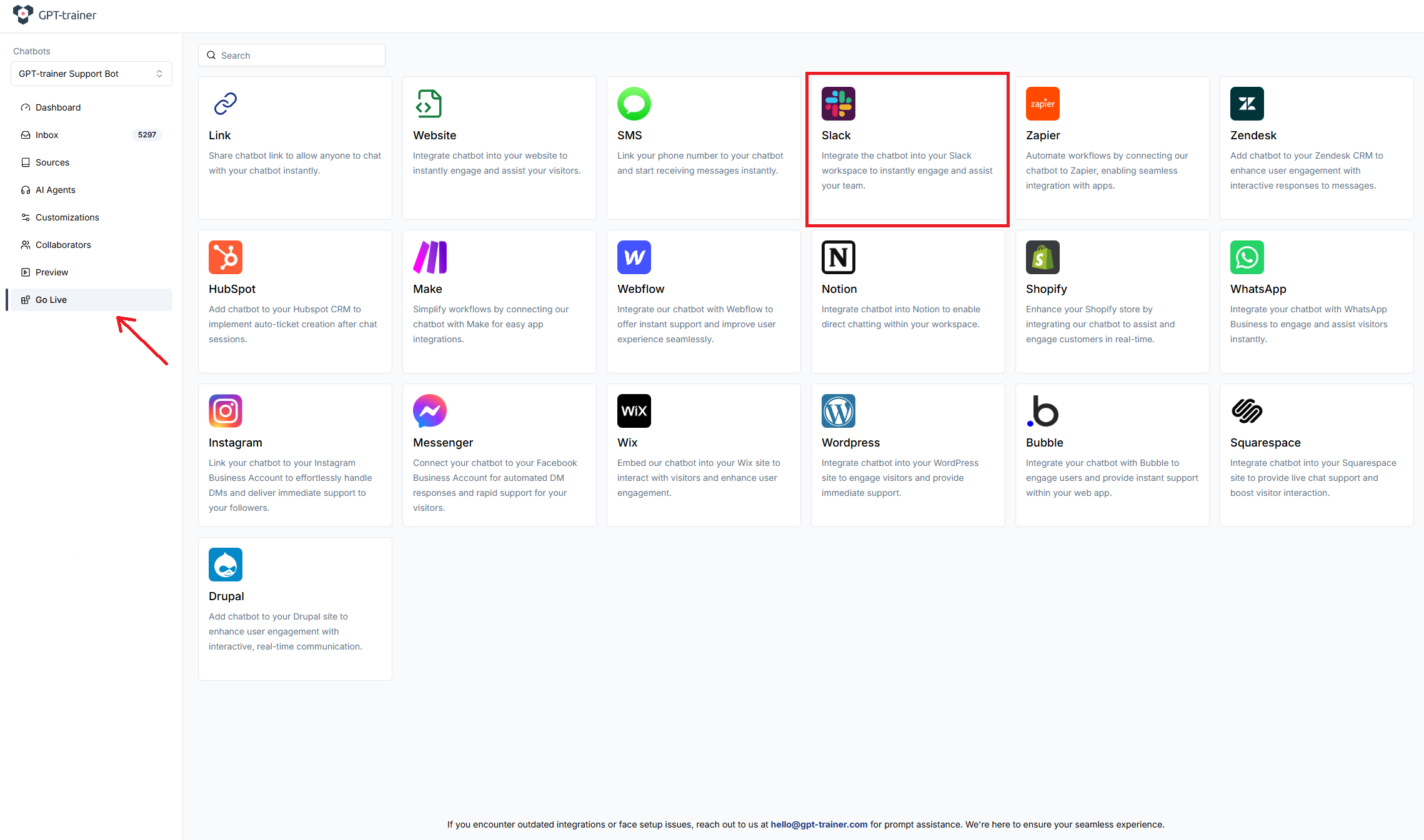
Connect to Slack
When you open the integration, you will see an “Add to Slack” button. Click on it to connect your Slack workspace to the chatbot.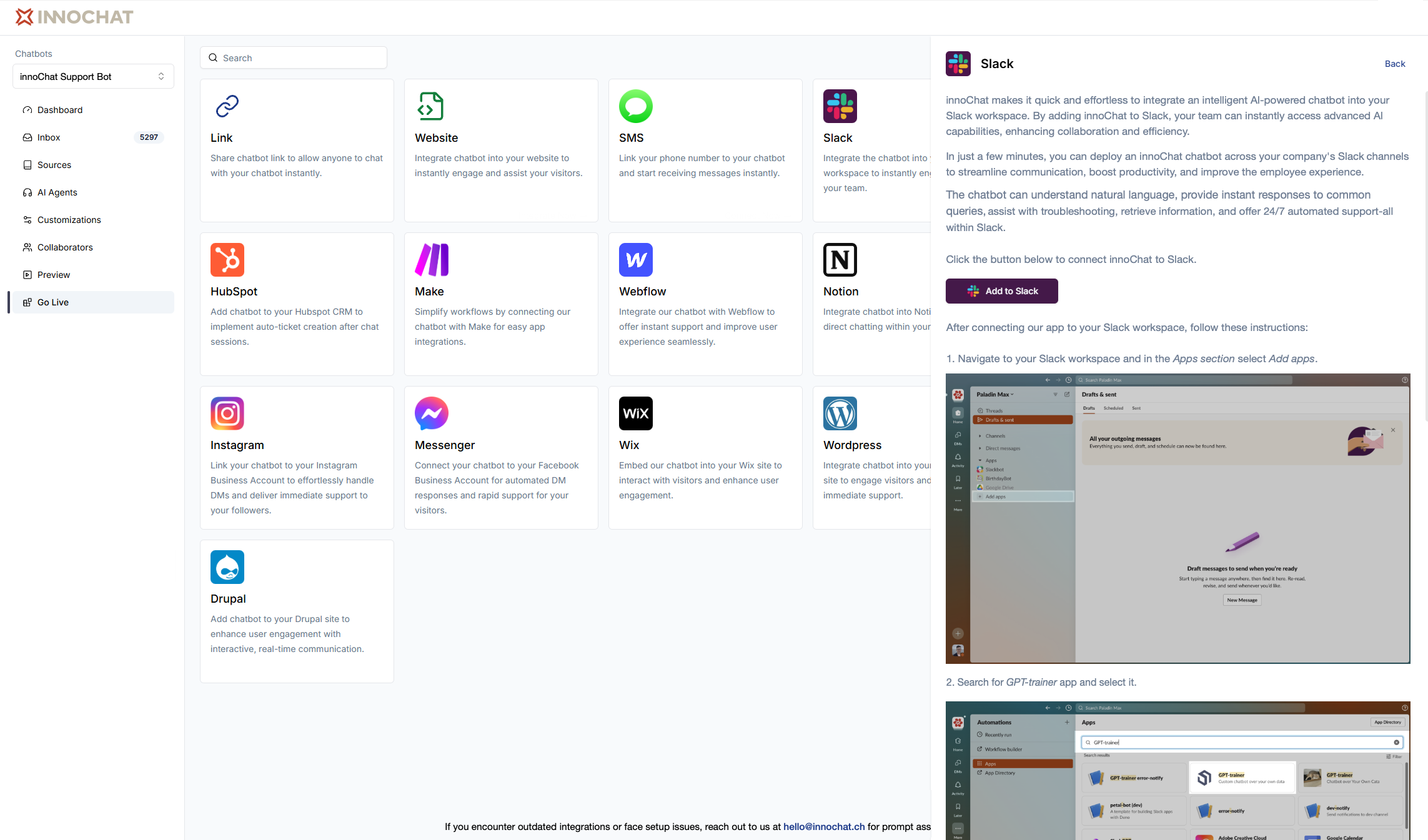
Authorize the app
After clicking “Add to Slack”, you will see a screen where Slack will ask you to authorize INNOCHAT to access your workspace. Click “Allow” to proceed.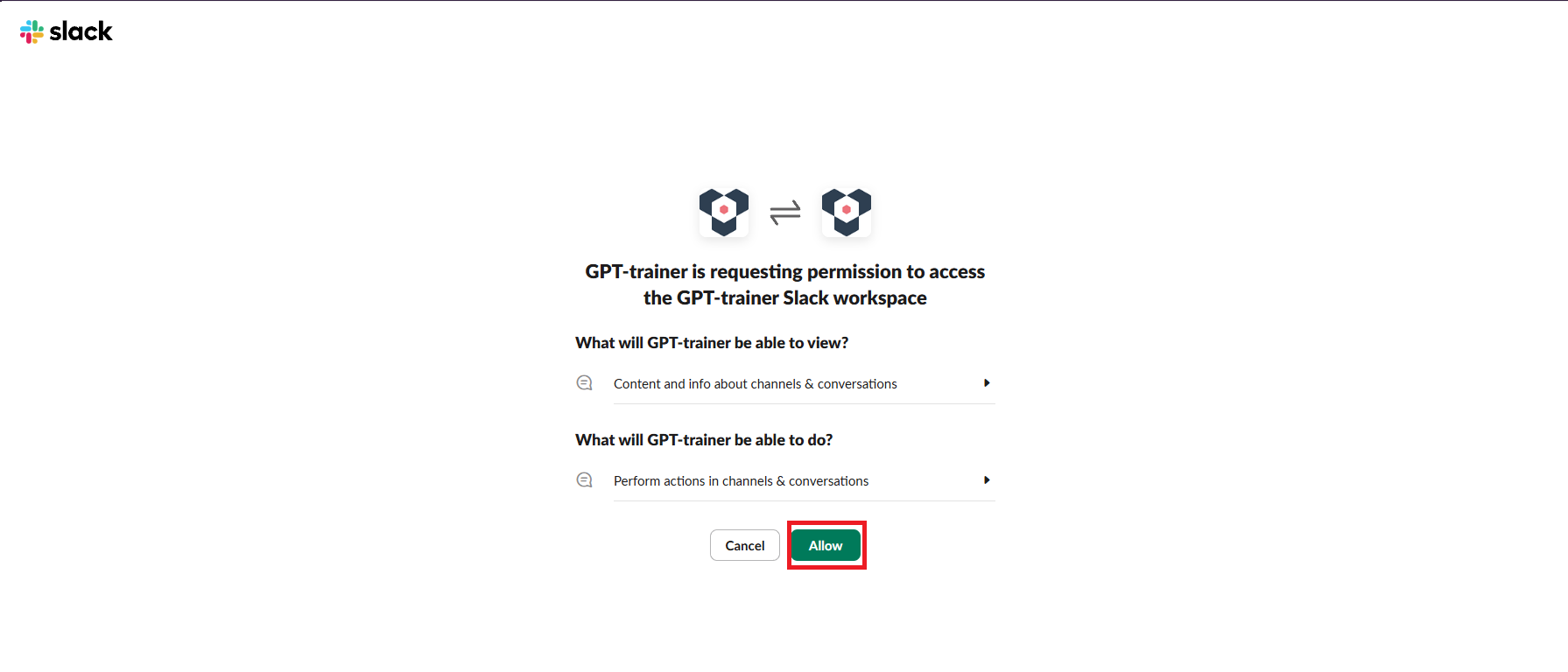
Success Installation
If everything goes well, you will be redirected back to the app. The “Add to Slack” button will be disabled, and you will see a success alert.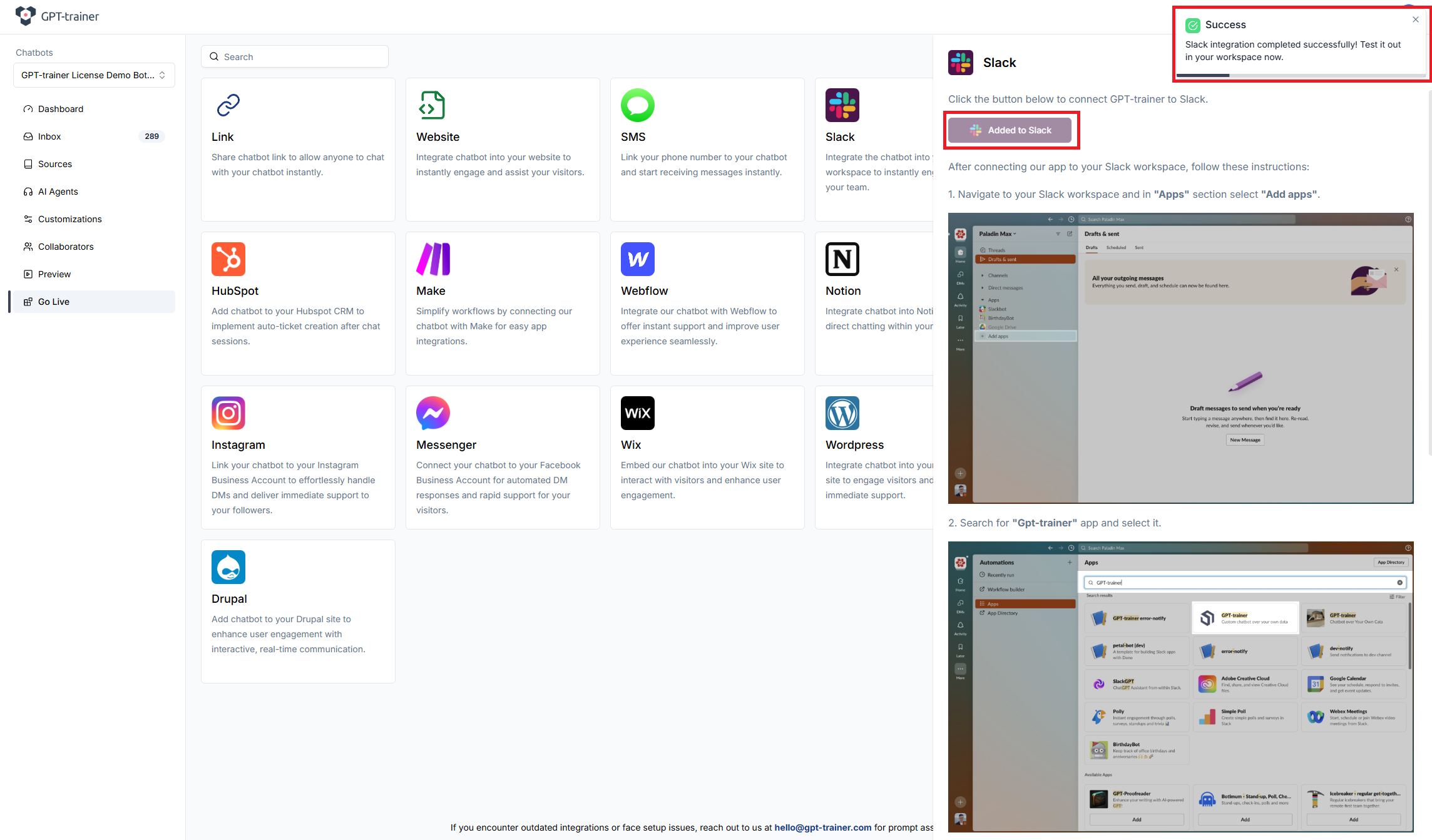
Choose your chatbot (Home tab)
In Slack, open Apps, find INNOCHAT (or the name your organization uses), and open the app. On the Home tab, use the dropdown to pick the chatbot you want for direct messages.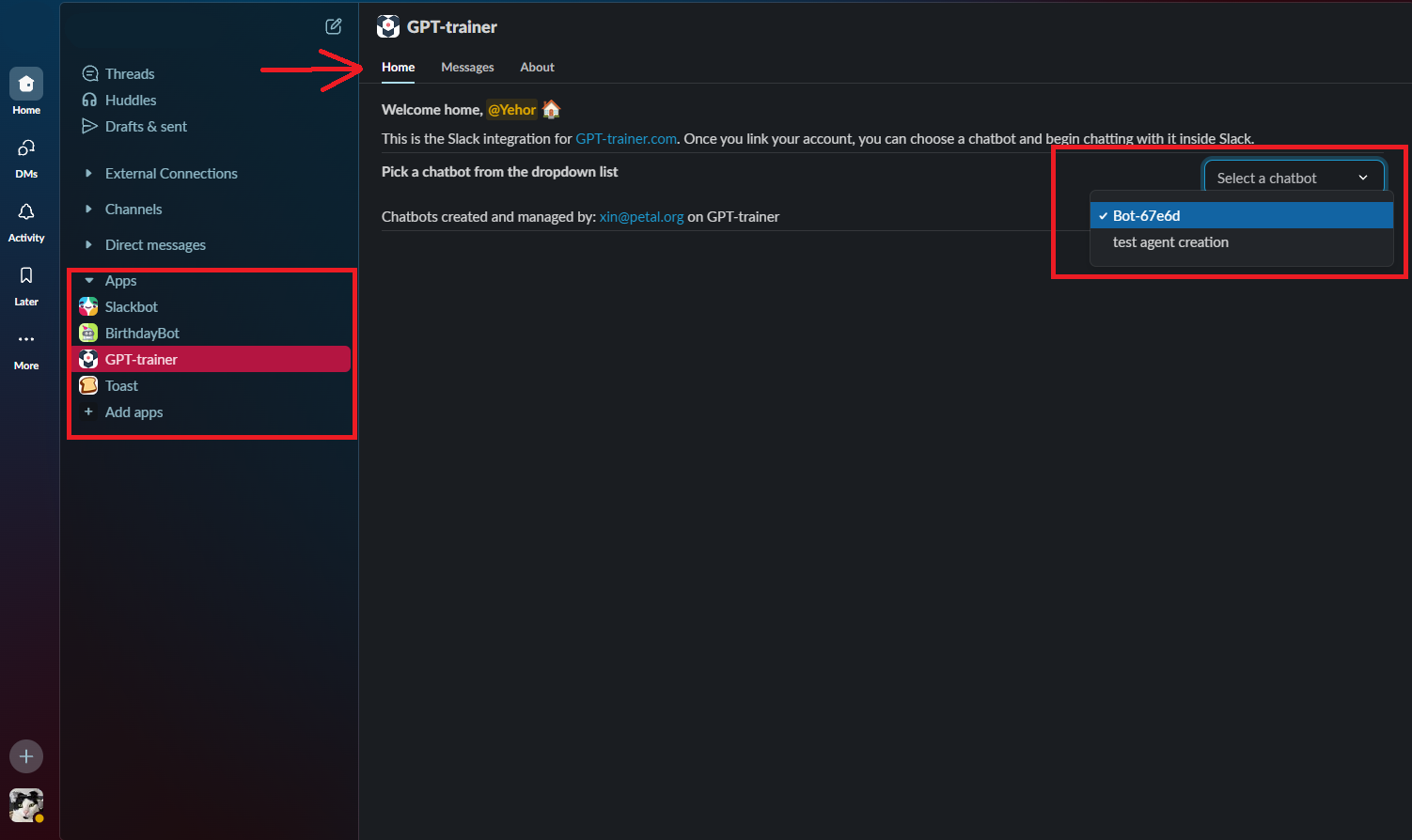
Chat in Messages (DM)
After you’ve selected a chatbot, open the Messages tab and chat with the bot in private, like any other DM.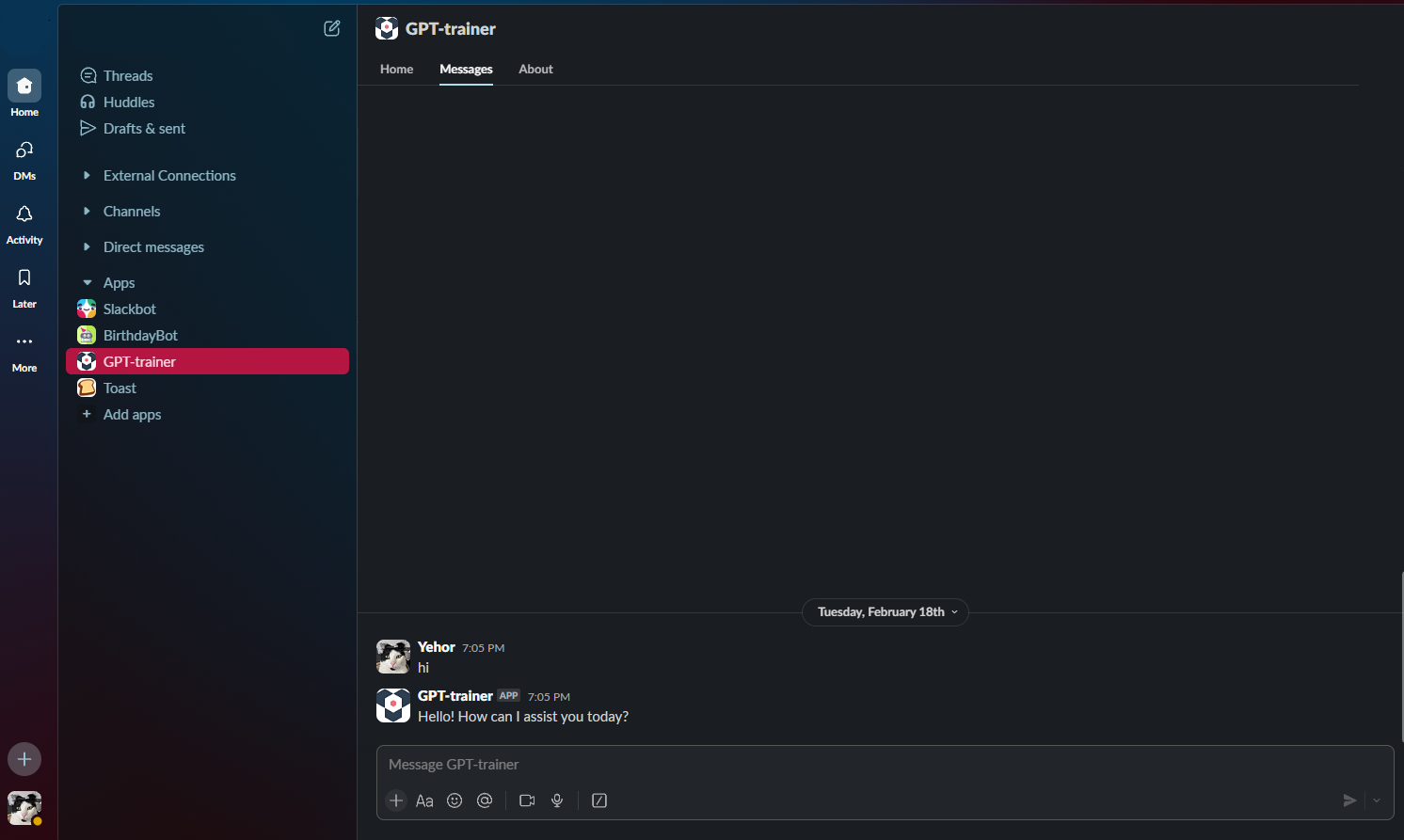
Start a new conversation
If you want to clear the current chat and begin again with the same chatbot, open Home and click New conversation. Use this when you want a fresh thread or if something seemed stuck.Use INNOCHAT in a channel (@mention)
You can also ask questions in a channel by mentioning the app (for example@INNOCHAT). The reply appears in a thread on your message so the main channel doesn’t fill with long answers. Before this works in a channel, someone who manages your setup must add one or more chatbots to that channel from the app’s Home tab, in the Channel Chatbots section (pick channel + chatbot, then Add). The first chatbot added is usually the default for simple @mentions.
Default chatbot
Mention the app and type your question:@INNOCHAT What is our time-off policy?
Choose a specific chatbot by name
If several chatbots are available for that channel, you can pick one by putting its name in square brackets right after the mention:@INNOCHAT [HR Assistant] How do I submit expenses? Use the exact name shown for that chatbot (you can ignore capitalization).
Keep the same conversation in the thread
Reply in the same thread (you can @mention the app again in that reply) to continue the same conversation. A new top-level message in the channel starts a new conversation. If the bot is still answering your previous message, you may briefly see a note to wait—try again in a moment.Invite the app to the channel
If nothing happens when you @mention the app, make sure the app is in the channel. In Slack you can run:/invite @YourAppName (Use the real app name shown in your workspace.)
Need help?
To understand how INNOCHAT handles your data, see our Privacy Policy.