> ## Documentation Index
> Fetch the complete documentation index at: https://docs.innochat.ch/llms.txt
> Use this file to discover all available pages before exploring further.
# Slack
> Connect INNOCHAT to Slack, chat in DMs, and use @mentions in channels—so your team gets answers where they already work.
INNOCHAT makes it quick and effortless to bring an intelligent AI chatbot into your Slack workspace. Your team can use it in **private messages** with the app or, when your workspace is set up for it, by **mentioning the app in a channel**—with answers shown in a thread so channels stay tidy.
In just a few minutes, you can deploy an INNOCHAT chatbot across your company’s Slack channels to streamline communication, boost productivity, and improve the employee experience. The chatbot can understand natural language, provide instant responses to common queries, assist with troubleshooting, retrieve information, and offer 24/7 automated support—all within Slack.
## Get Started with Your INNOCHAT Chatbot
These steps assume you’ve already created an INNOCHAT account and have an INNOCHAT chatbot ready to use. If you haven’t, sign up for a free INNOCHAT account and create your first AI chatbot. For example, you could build a company FAQ chatbot to instantly answer common employee questions, a support bot to handle customer inquiries through chat, or a team collaboration bot to assist Slack teams by answering queries, summarizing conversations, and providing brainstorming suggestions. Get your chatbot tailored to your needs before proceeding with integration. If you don’t have a chatbot, you might want to explore [creating one with INNOCHAT](/creating-first-chatbot) to get started.
## Find Slack Integration
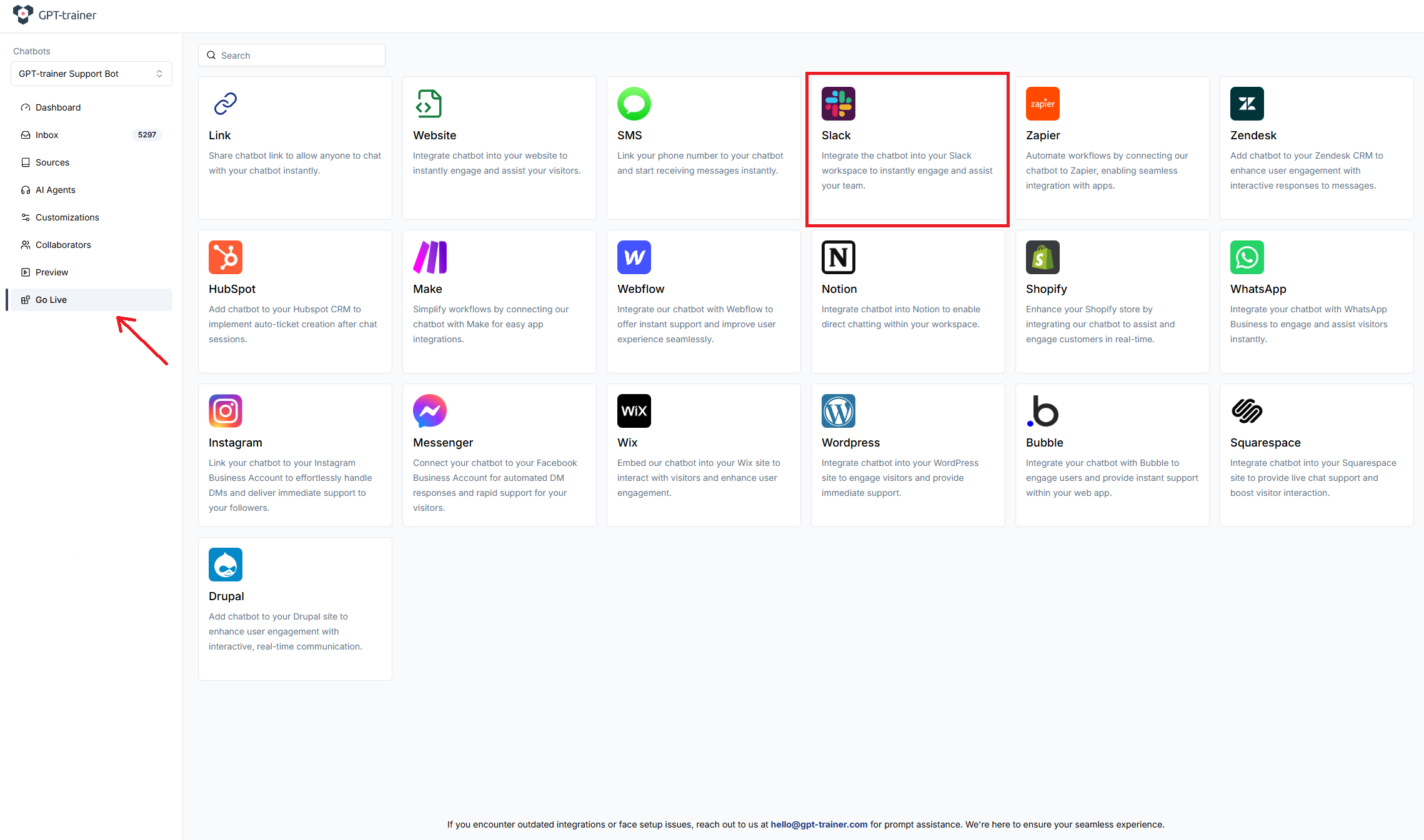
Open the chatbot you want to use with Slack and go to the **Go Live** section. Choose **Slack** to start connecting your workspace.
 ## Connect to Slack
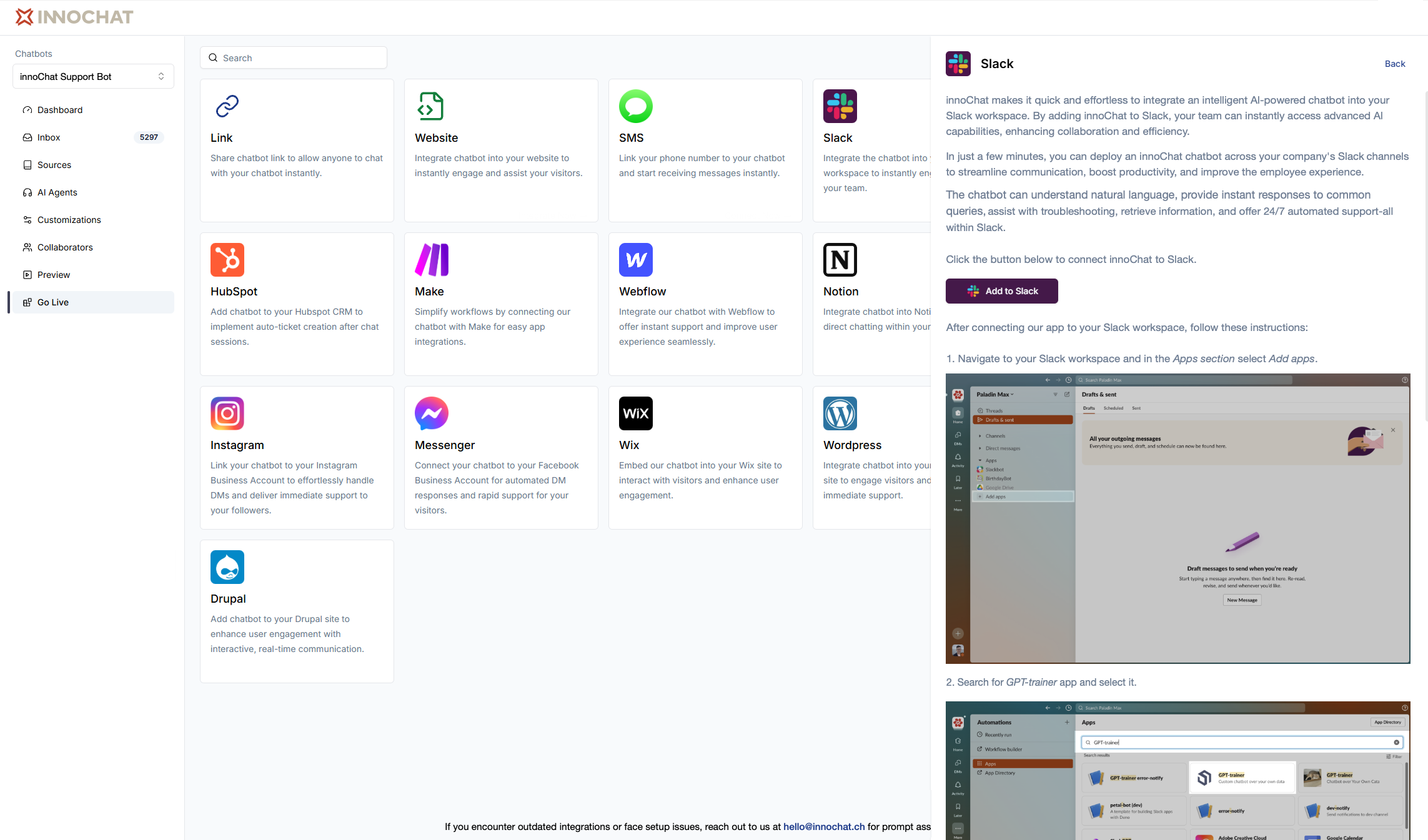
When you open the integration, you will see an **"Add to Slack"** button. Click on it to connect your Slack workspace to the chatbot.
## Connect to Slack
When you open the integration, you will see an **"Add to Slack"** button. Click on it to connect your Slack workspace to the chatbot.
 ## Authorize the app
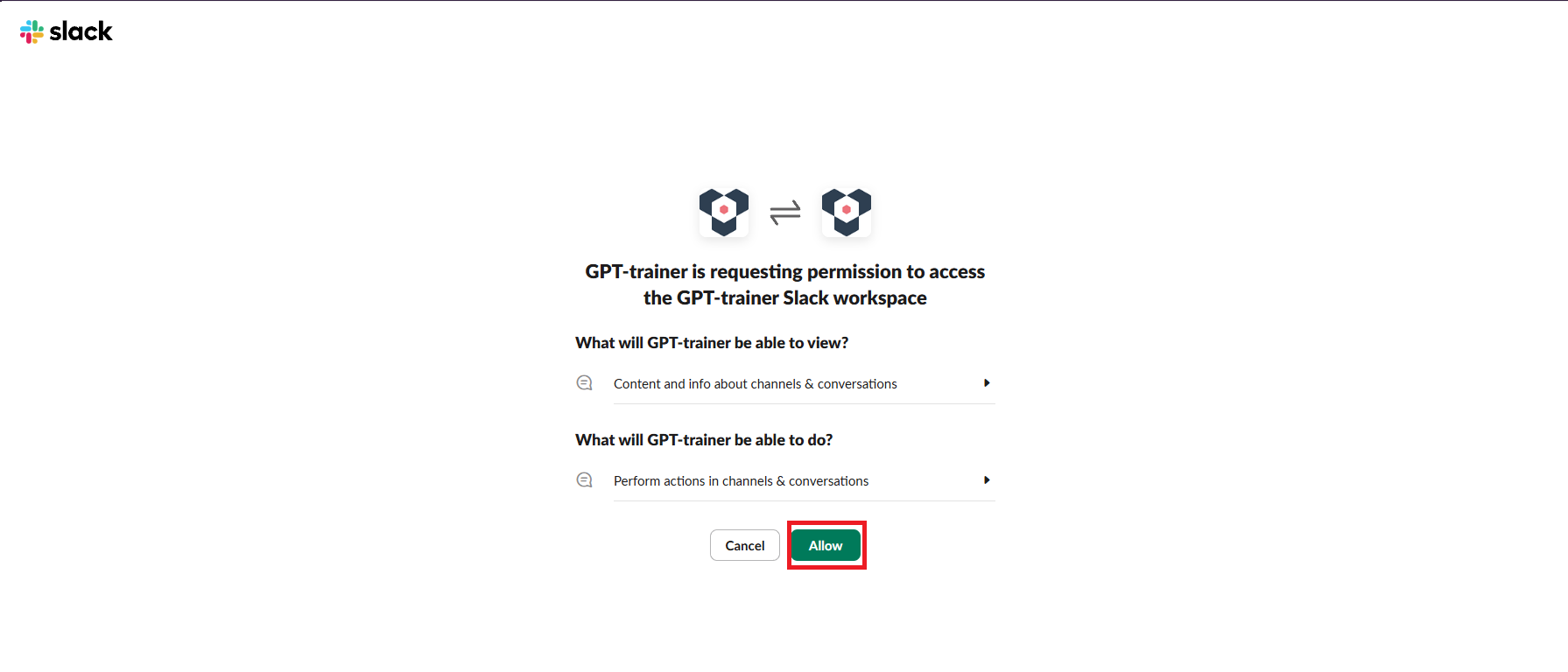
After clicking "Add to Slack", you will see a screen where Slack will ask you to authorize INNOCHAT to access your workspace. Click **"Allow"** to proceed.
## Authorize the app
After clicking "Add to Slack", you will see a screen where Slack will ask you to authorize INNOCHAT to access your workspace. Click **"Allow"** to proceed.
 ## Success Installation
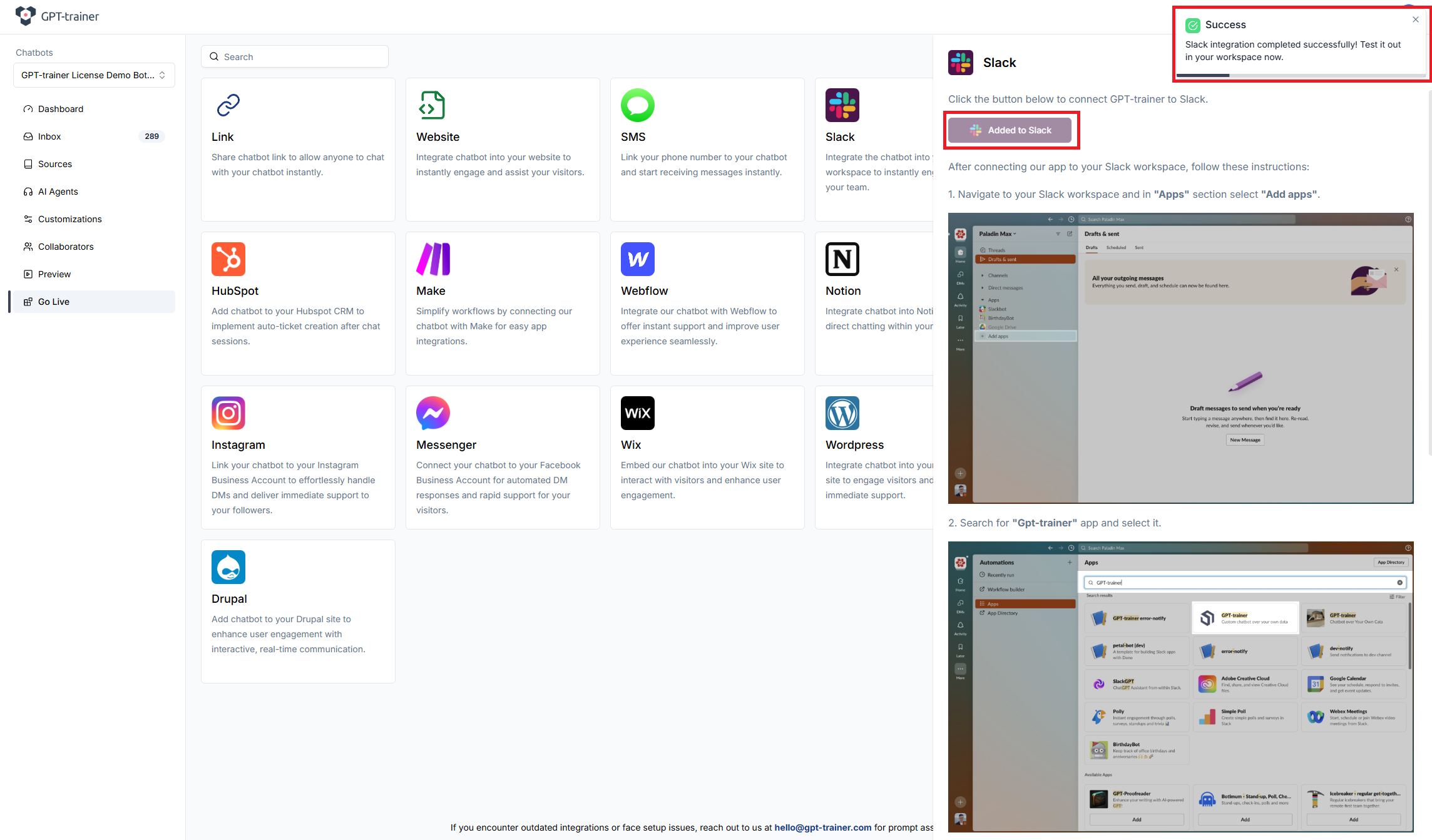
If everything goes well, you will be redirected back to the app. The "Add to Slack" button will be disabled, and you will see a success alert.
## Success Installation
If everything goes well, you will be redirected back to the app. The "Add to Slack" button will be disabled, and you will see a success alert.
 At this point, you’ve successfully connected your chatbot with the workspace, so it’s time to navigate to your Slack workspace and give it a try.
## Choose your chatbot (Home tab)
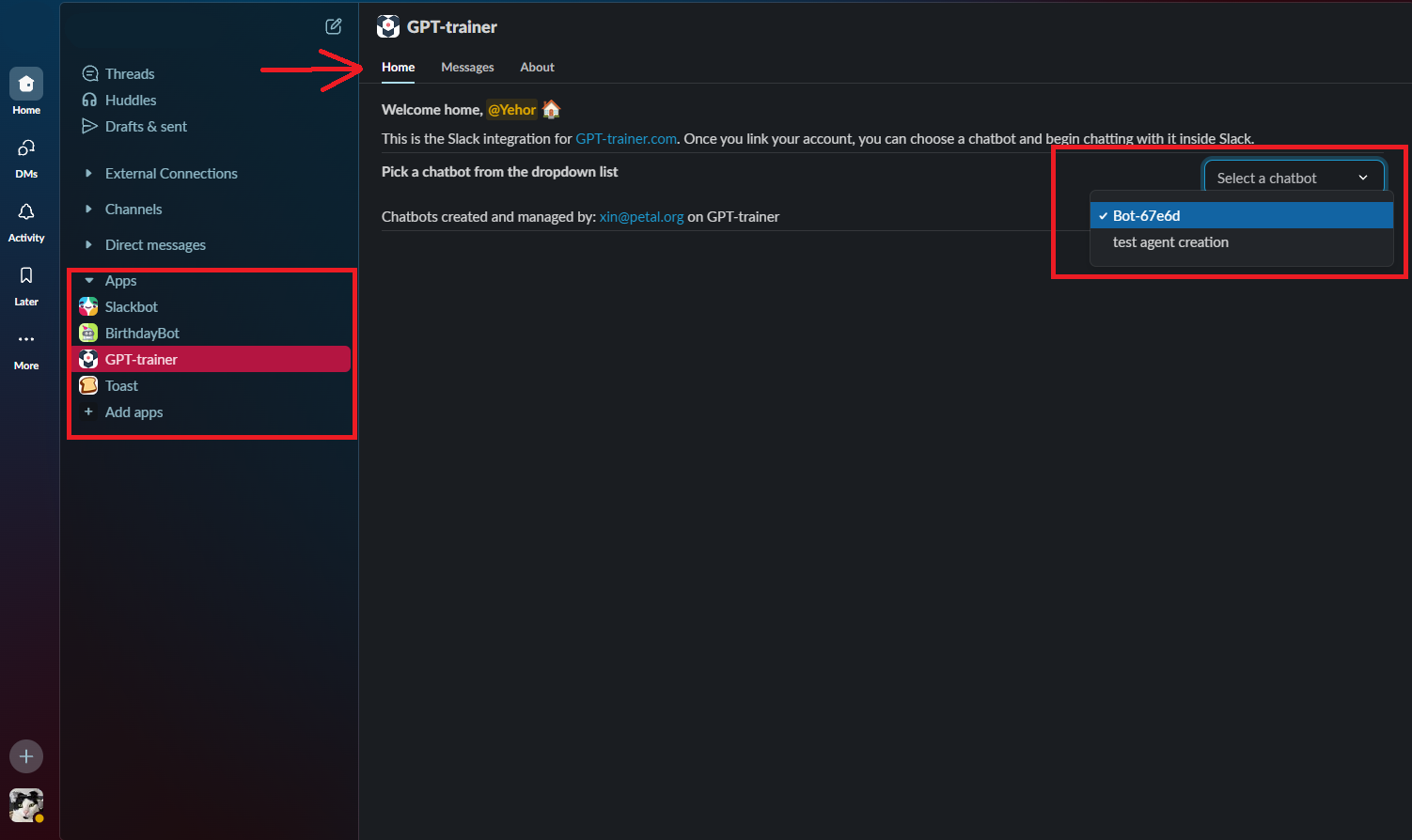
In Slack, open **Apps**, find **INNOCHAT** (or the name your organization uses), and open the app. On the **Home** tab, use the dropdown to **pick the chatbot** you want for **direct messages**.
At this point, you’ve successfully connected your chatbot with the workspace, so it’s time to navigate to your Slack workspace and give it a try.
## Choose your chatbot (Home tab)
In Slack, open **Apps**, find **INNOCHAT** (or the name your organization uses), and open the app. On the **Home** tab, use the dropdown to **pick the chatbot** you want for **direct messages**.
 ## Chat in Messages (DM)
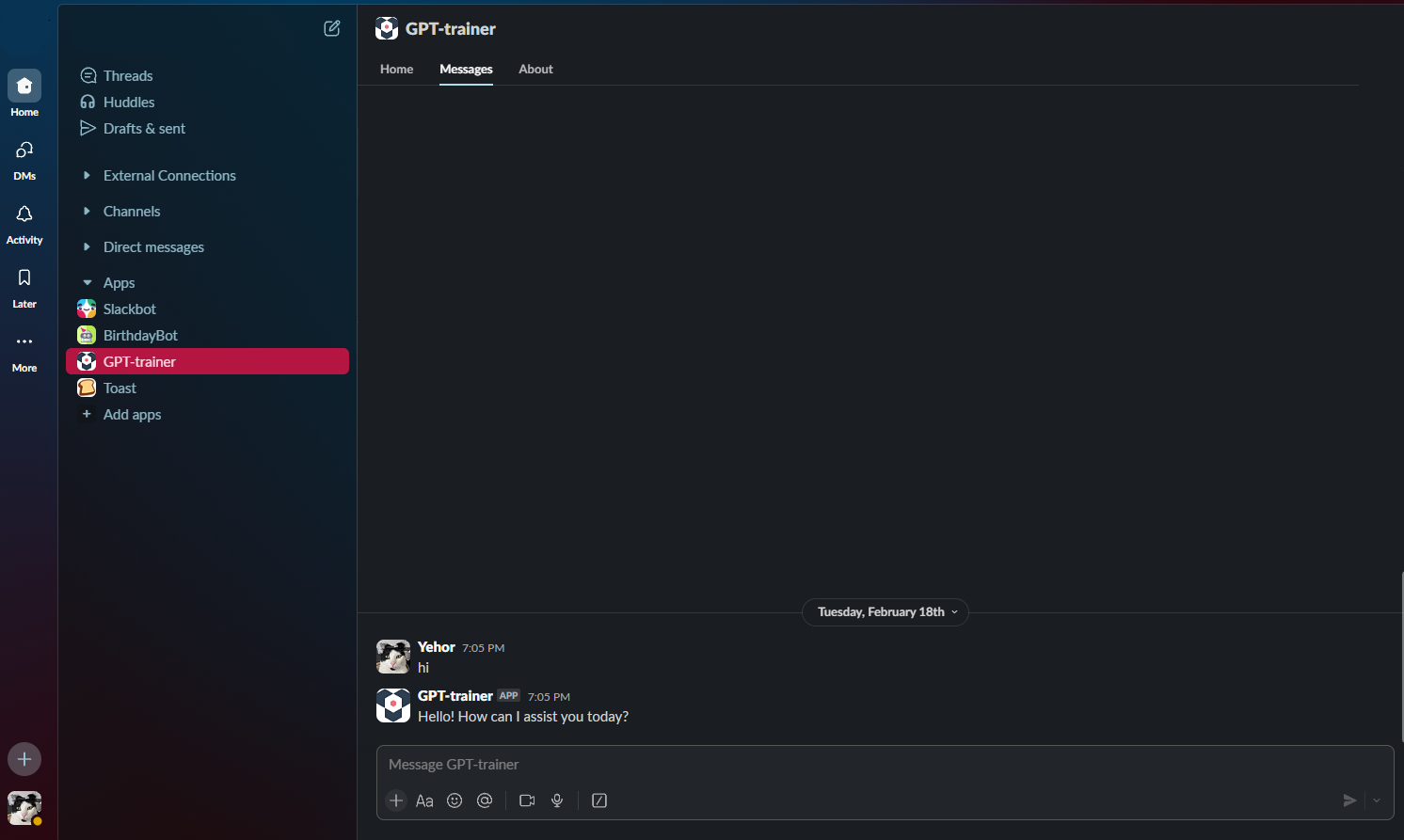
After you’ve selected a chatbot, open the **Messages** tab and chat with the bot in private, like any other DM.
## Chat in Messages (DM)
After you’ve selected a chatbot, open the **Messages** tab and chat with the bot in private, like any other DM.
 ### Start a new conversation
If you want to **clear the current chat** and begin again with the **same** chatbot, open **Home** and click **New conversation**. Use this when you want a fresh thread or if something seemed stuck.
***
## Use INNOCHAT in a channel (@mention)
You can also ask questions **in a channel** by **mentioning the app** (for example `@INNOCHAT`). The reply appears in a **thread** on your message so the main channel doesn’t fill with long answers. **Before this works in a channel**, someone who manages your setup must add one or more chatbots to that channel from the app’s **Home** tab, in the **Channel Chatbots** section (pick channel + chatbot, then **Add**). The first chatbot added is usually the **default** for simple `@mentions`.
### Default chatbot
Mention the app and type your question: `@INNOCHAT What is our time-off policy?`
### Choose a specific chatbot by name
If several chatbots are available for that channel, you can pick one by putting its **name in square brackets** right after the mention: `@INNOCHAT [HR Assistant] How do I submit expenses?` Use the **exact name** shown for that chatbot (you can ignore capitalization).
### Keep the same conversation in the thread
**Reply in the same thread** (you can @mention the app again in that reply) to continue the **same** conversation. A **new top-level message** in the channel starts a **new** conversation. If the bot is still answering your previous message, you may briefly see a note to wait—try again in a moment.
### Invite the app to the channel
If nothing happens when you @mention the app, make sure the app is **in the channel**. In Slack you can run: `/invite @YourAppName` (Use the real app name shown in your workspace.)
## Need help?
| Situation | What to try |
| --------------------------------- | ------------------------------------------------------------------------------------------- |
| Bot asks you to pick a chatbot | Open **Home**, choose a chatbot in the dropdown, then write in **Messages** again. |
| Channel says no chatbot is set up | Ask your **admin** to add chatbots for that channel under **Channel Chatbots** on **Home**. |
| Wrong bot answers in a channel | Use `[Bot name]` after the mention, or ask your admin which bot is the default. |
| Plan or upgrade message | Your organization’s INNOCHAT plan may not include Slack; contact your admin. |
To understand how INNOCHAT handles your data, see our [Privacy Policy](https://innochat.ch/privacy).
### Start a new conversation
If you want to **clear the current chat** and begin again with the **same** chatbot, open **Home** and click **New conversation**. Use this when you want a fresh thread or if something seemed stuck.
***
## Use INNOCHAT in a channel (@mention)
You can also ask questions **in a channel** by **mentioning the app** (for example `@INNOCHAT`). The reply appears in a **thread** on your message so the main channel doesn’t fill with long answers. **Before this works in a channel**, someone who manages your setup must add one or more chatbots to that channel from the app’s **Home** tab, in the **Channel Chatbots** section (pick channel + chatbot, then **Add**). The first chatbot added is usually the **default** for simple `@mentions`.
### Default chatbot
Mention the app and type your question: `@INNOCHAT What is our time-off policy?`
### Choose a specific chatbot by name
If several chatbots are available for that channel, you can pick one by putting its **name in square brackets** right after the mention: `@INNOCHAT [HR Assistant] How do I submit expenses?` Use the **exact name** shown for that chatbot (you can ignore capitalization).
### Keep the same conversation in the thread
**Reply in the same thread** (you can @mention the app again in that reply) to continue the **same** conversation. A **new top-level message** in the channel starts a **new** conversation. If the bot is still answering your previous message, you may briefly see a note to wait—try again in a moment.
### Invite the app to the channel
If nothing happens when you @mention the app, make sure the app is **in the channel**. In Slack you can run: `/invite @YourAppName` (Use the real app name shown in your workspace.)
## Need help?
| Situation | What to try |
| --------------------------------- | ------------------------------------------------------------------------------------------- |
| Bot asks you to pick a chatbot | Open **Home**, choose a chatbot in the dropdown, then write in **Messages** again. |
| Channel says no chatbot is set up | Ask your **admin** to add chatbots for that channel under **Channel Chatbots** on **Home**. |
| Wrong bot answers in a channel | Use `[Bot name]` after the mention, or ask your admin which bot is the default. |
| Plan or upgrade message | Your organization’s INNOCHAT plan may not include Slack; contact your admin. |
To understand how INNOCHAT handles your data, see our [Privacy Policy](https://innochat.ch/privacy).